
AI-ready templates · before and after

I gave three AI assistants the same brief. Then I fixed the template and asked again.

The template was a polished design bought from a marketplace. I asked Copilot, ChatGPT and Claude to build a ten-slide business update with it, using my photos, then fixed what the results showed and gave them exactly the same brief again.

Slides that work, out of ten
AssistantBeforeAfter
Copilot3 of 1010 of 10
ChatGPT2 of 1010 of 10
Claude7 of 1010 of 10
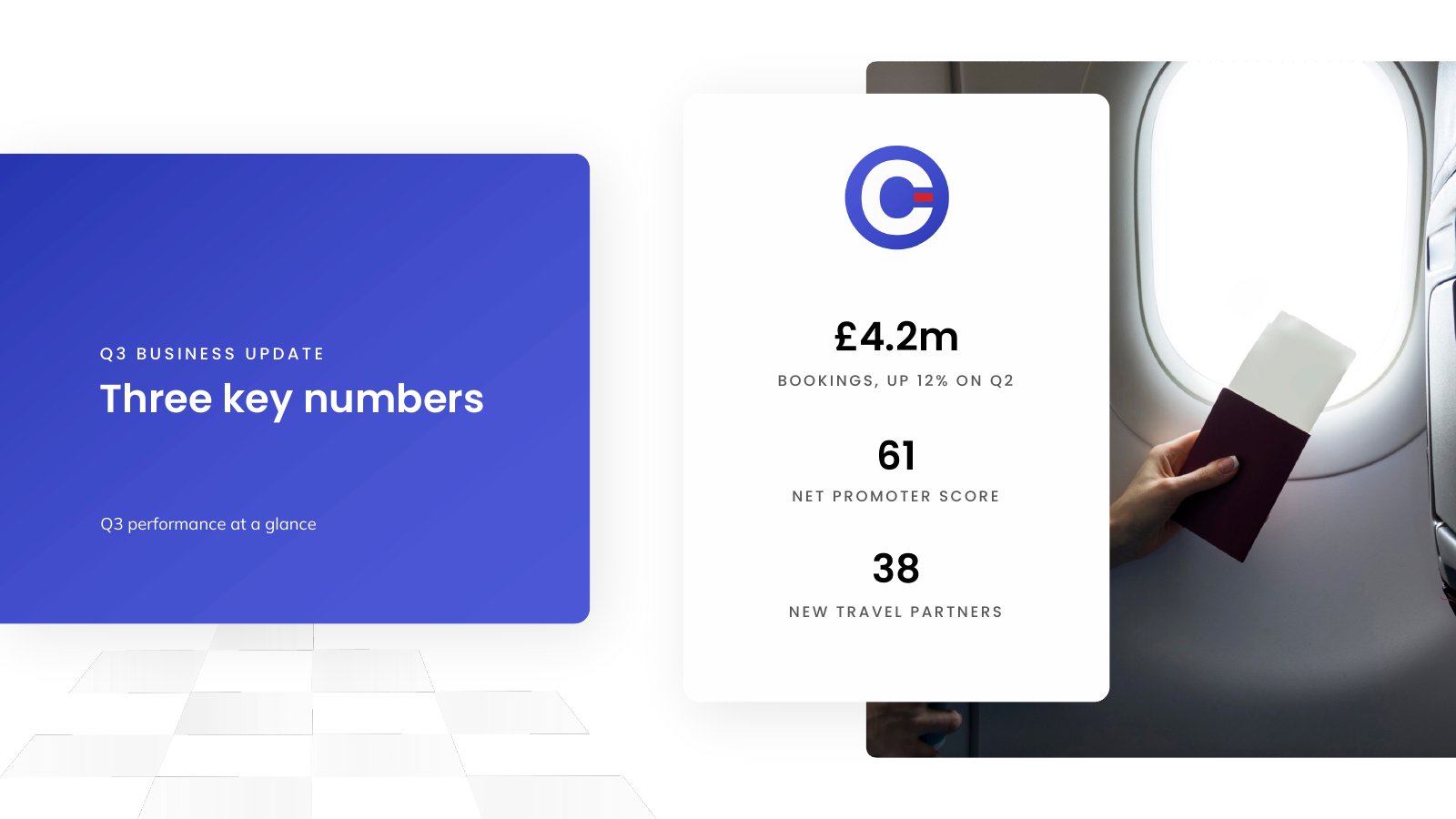
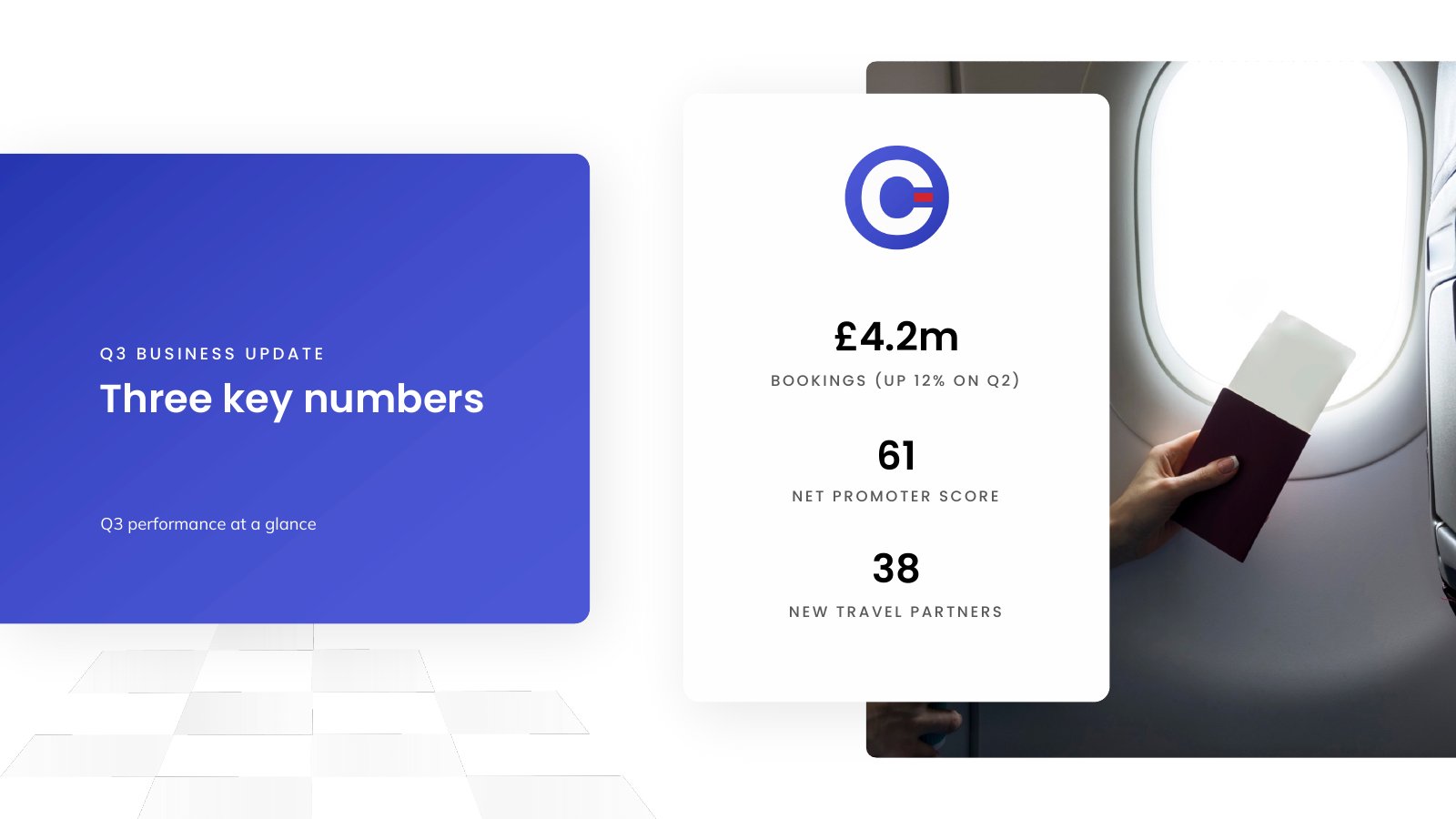
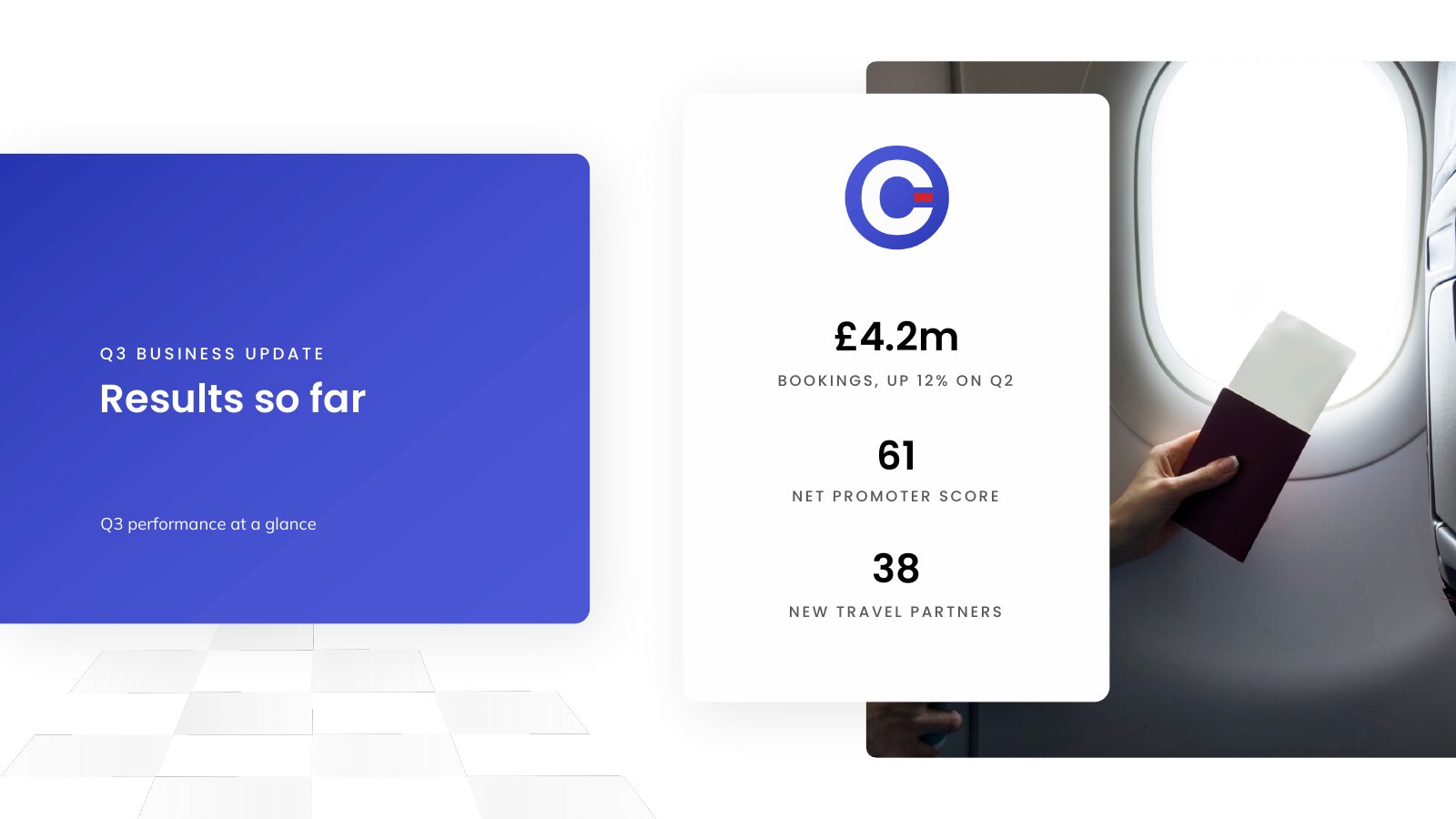
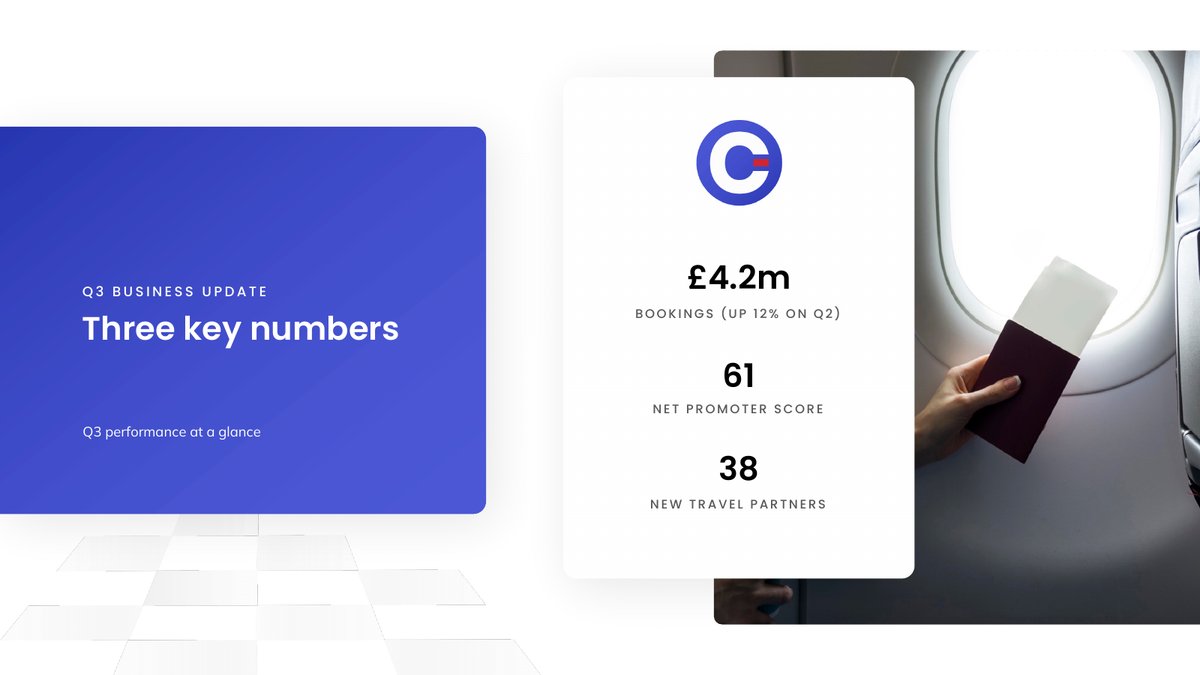
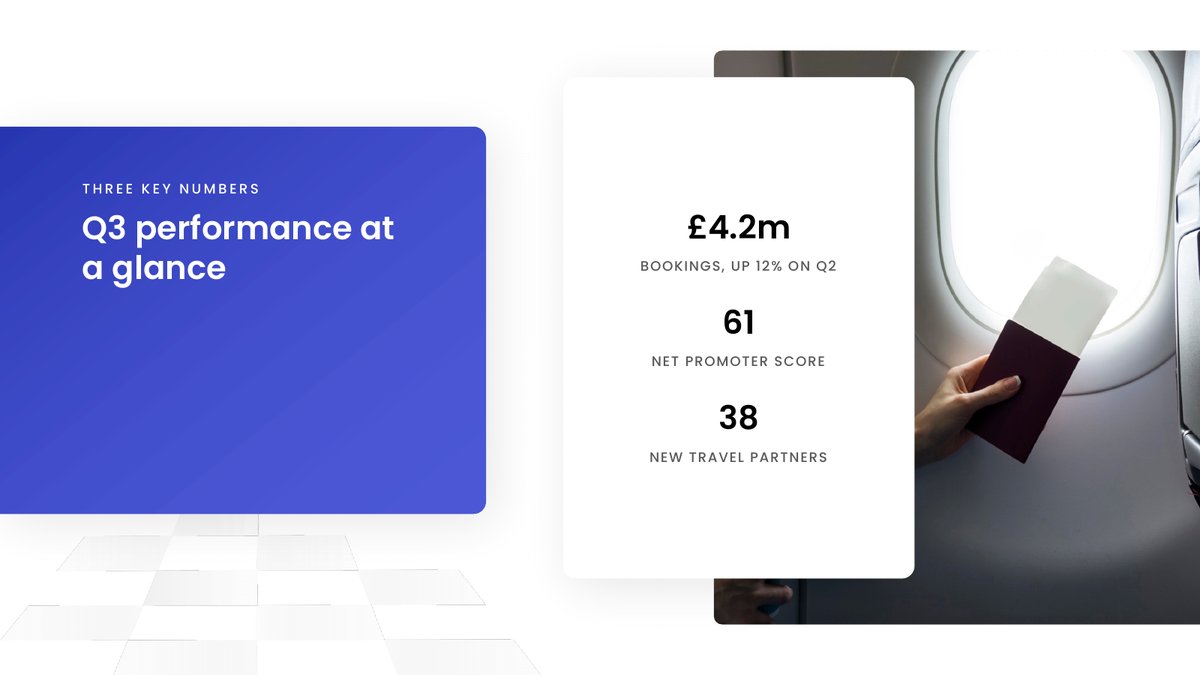
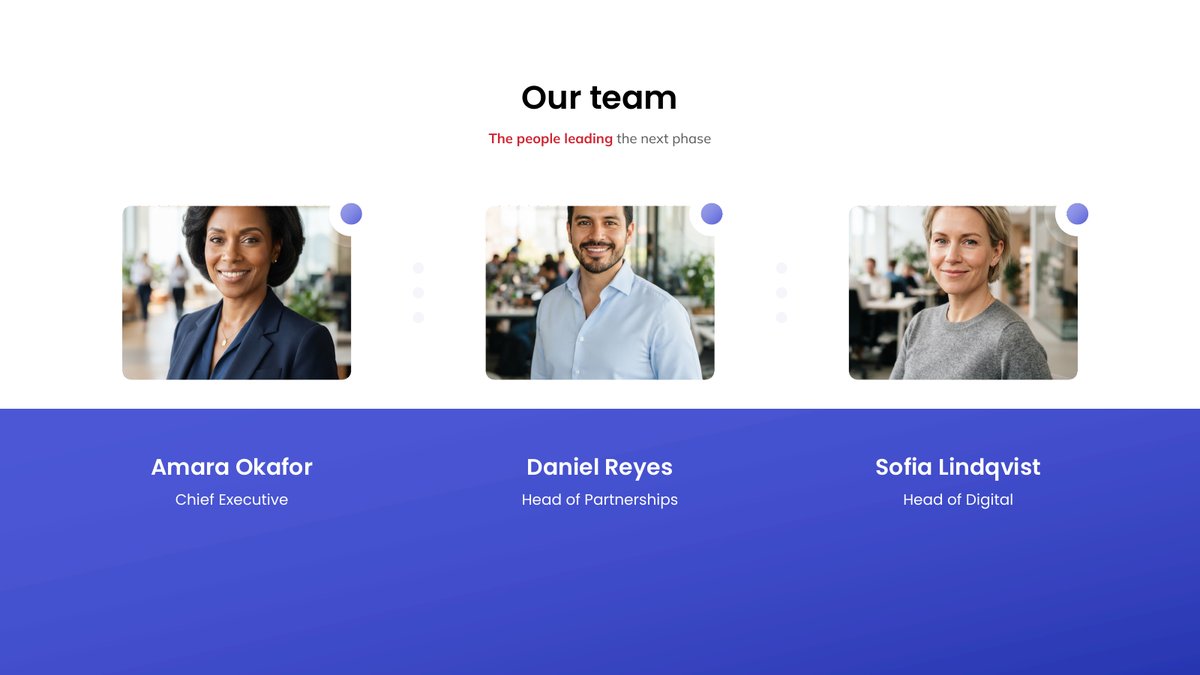
The key numbers slide Copilot made with the fixed template
Copilot
The key numbers slide ChatGPT made with the fixed template
ChatGPT
The key numbers slide Claude made with the fixed template
Claude

The same slide from the brief, as each assistant made it with the fixed template.

The test

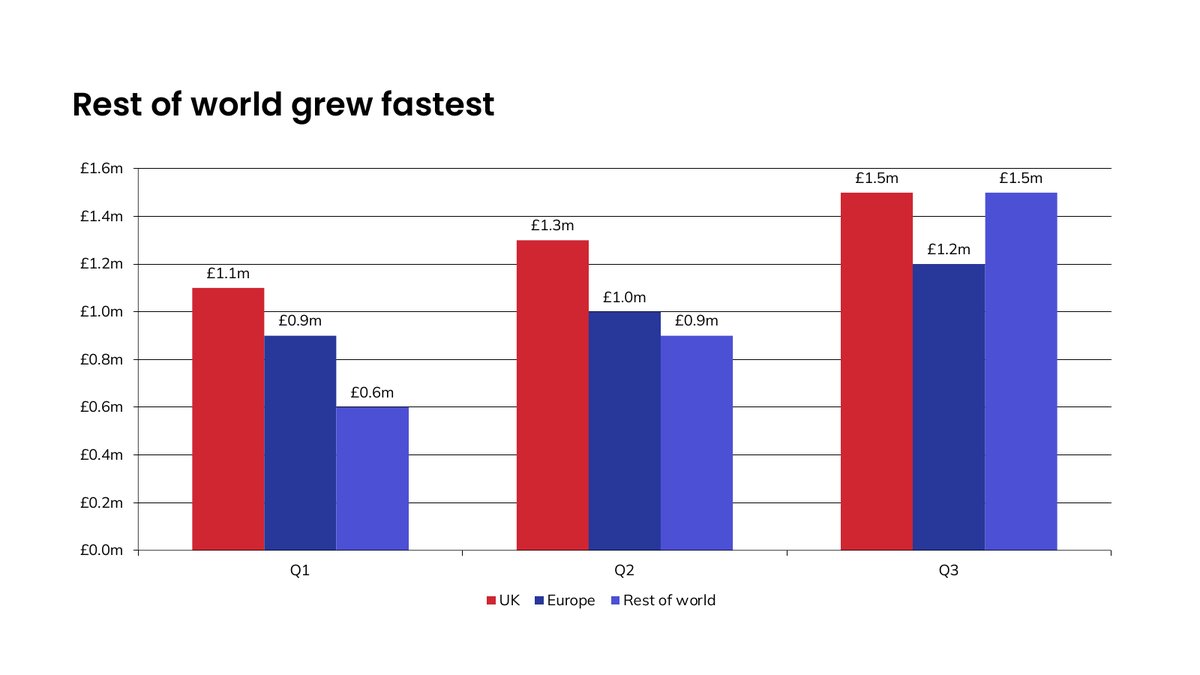
The brief was a fictional ten-slide quarterly update: a cover, an agenda, who we are, three key numbers, a bar chart, two options, next steps, the team, a customer quote and a thank you, with a photo named for each slide that needed one. Each assistant got the template, the photos and the brief, and the results are shown exactly as they came out, except that where a before shows the template’s own example text, I’ve blurred it. Only the template changed between before and after.

With the fixed template, five of the ten slides came out identical from all three assistants. They are three separate files, saved by three different tools, but each put the same brief text and the same photos into the same boxes, because the template leaves no room to improvise.

Before
32 layouts and no text boxes in any of them
After
18 clearly named layouts, all with text boxes
Made-up text
From all three assistants before, none after

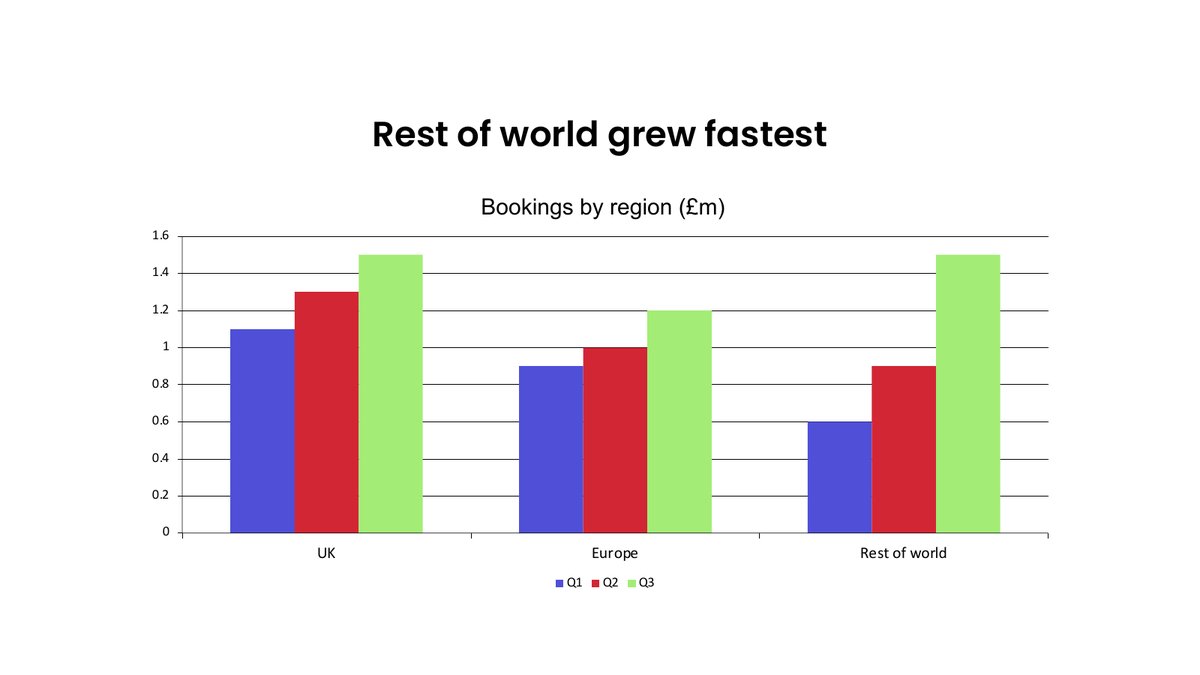
What’s left is small: Claude’s and Copilot’s charts use a default font instead of the template’s, and Copilot typed “Thank you” all in black instead of colouring “you” blue.
Same brief, same assistant

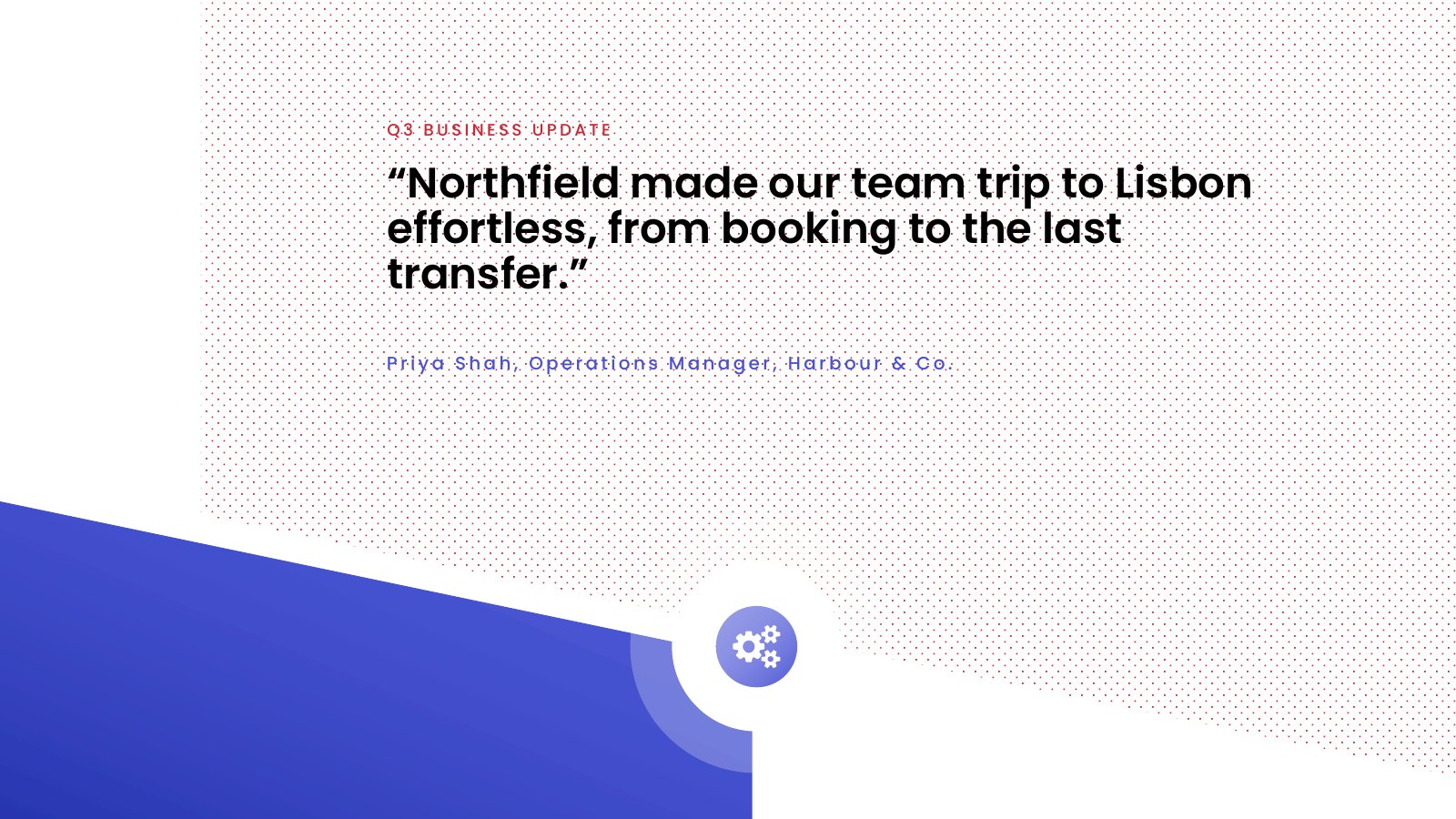
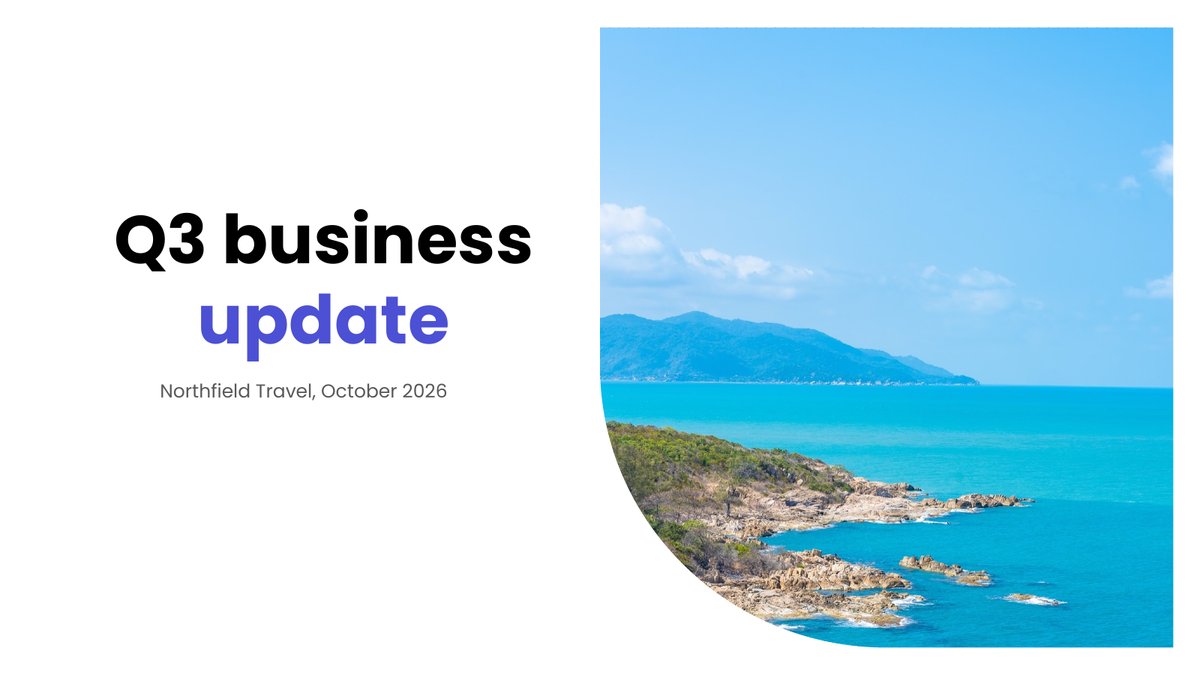
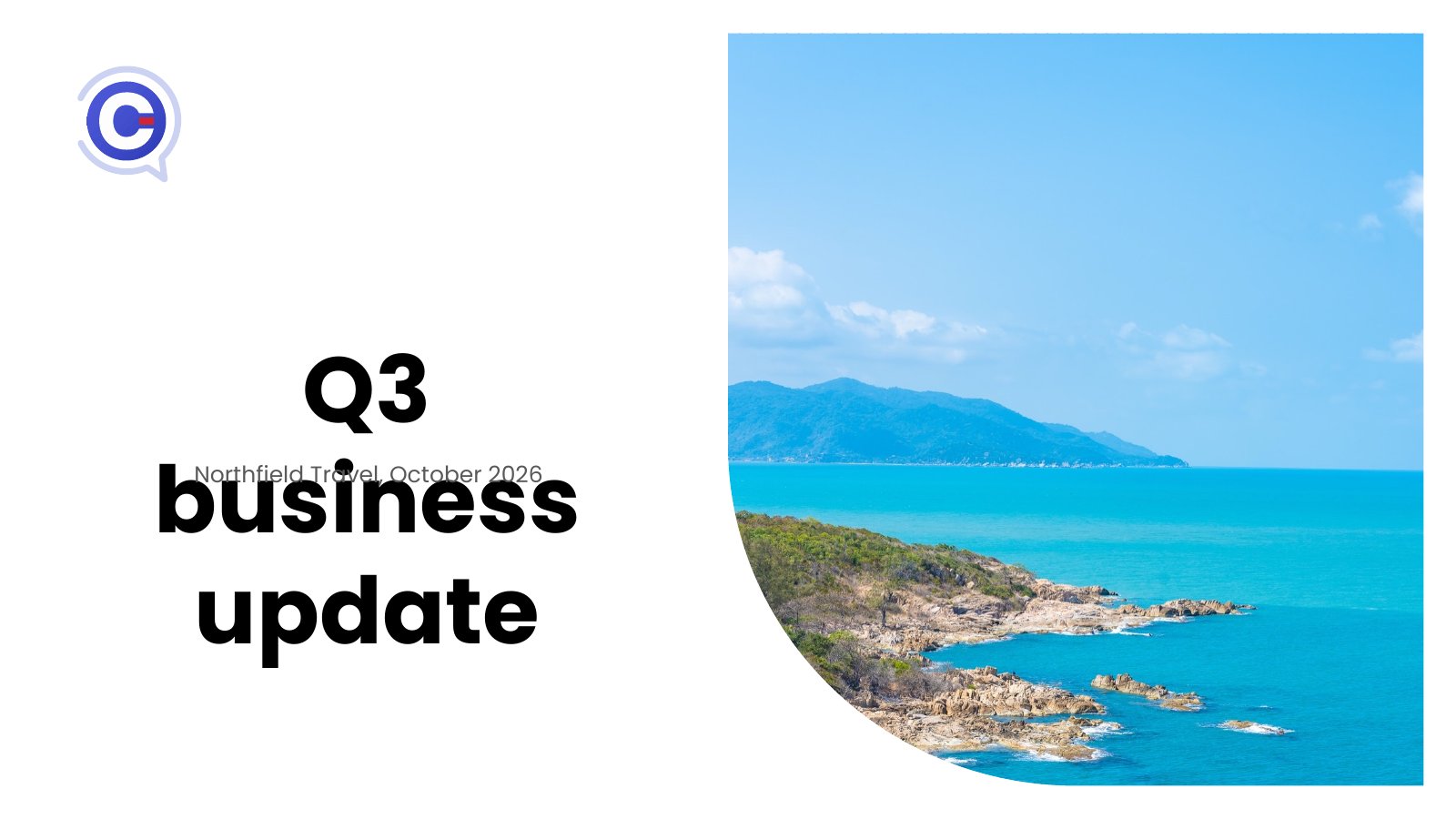
Copilot’s cover

Before: The subtitle printed over the title.
Before. The subtitle printed over the title.
After: Title and subtitle in their own boxes, beside the cover photo.
After. Title and subtitle in their own boxes, beside the cover photo.

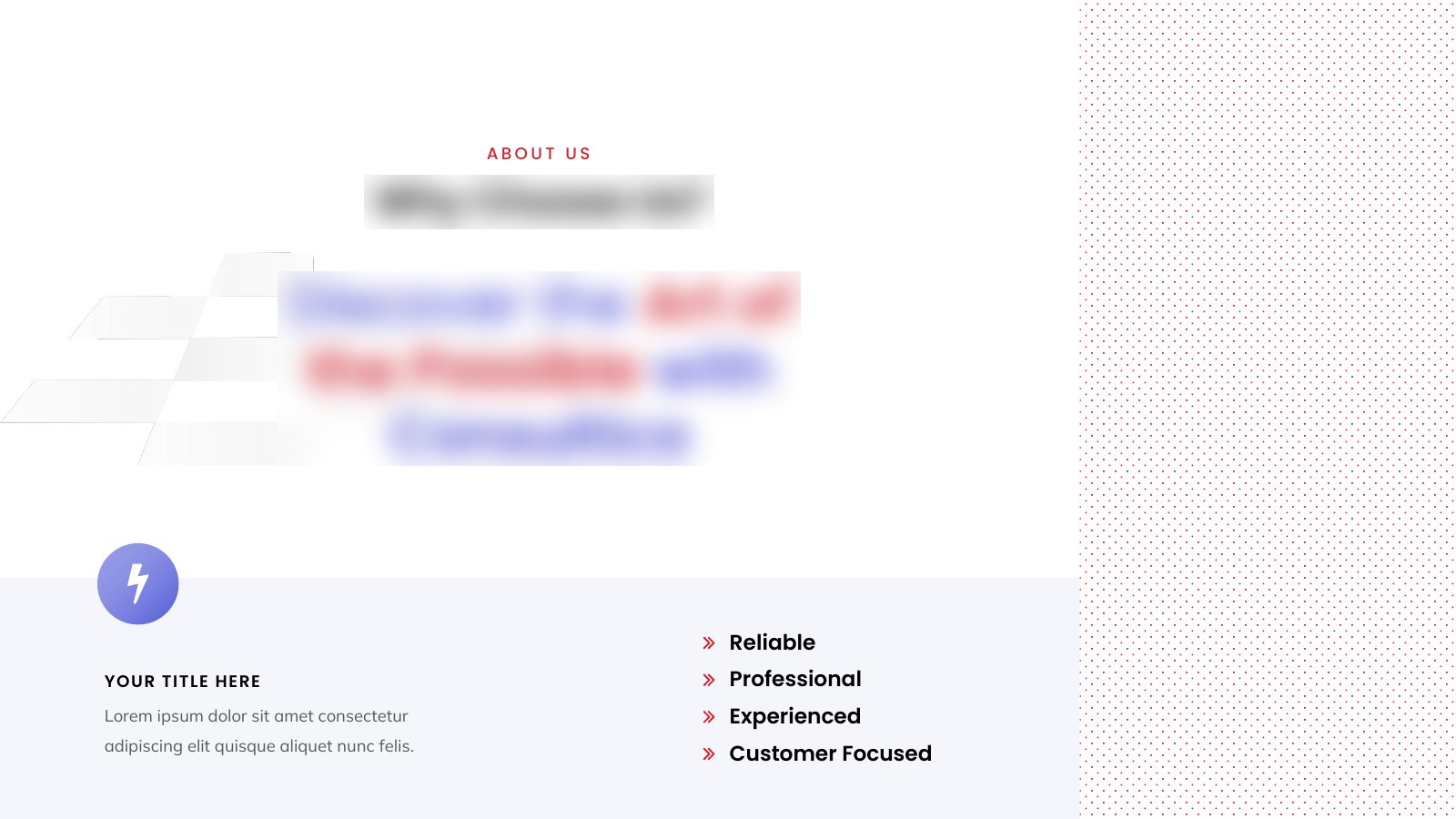
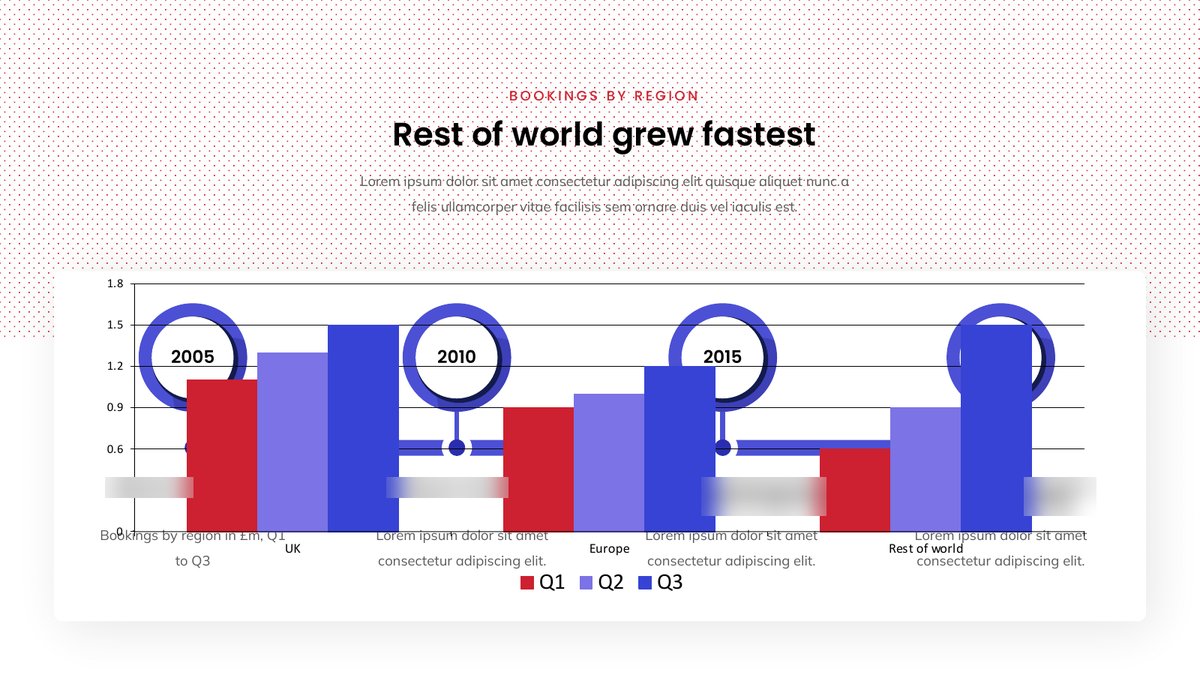
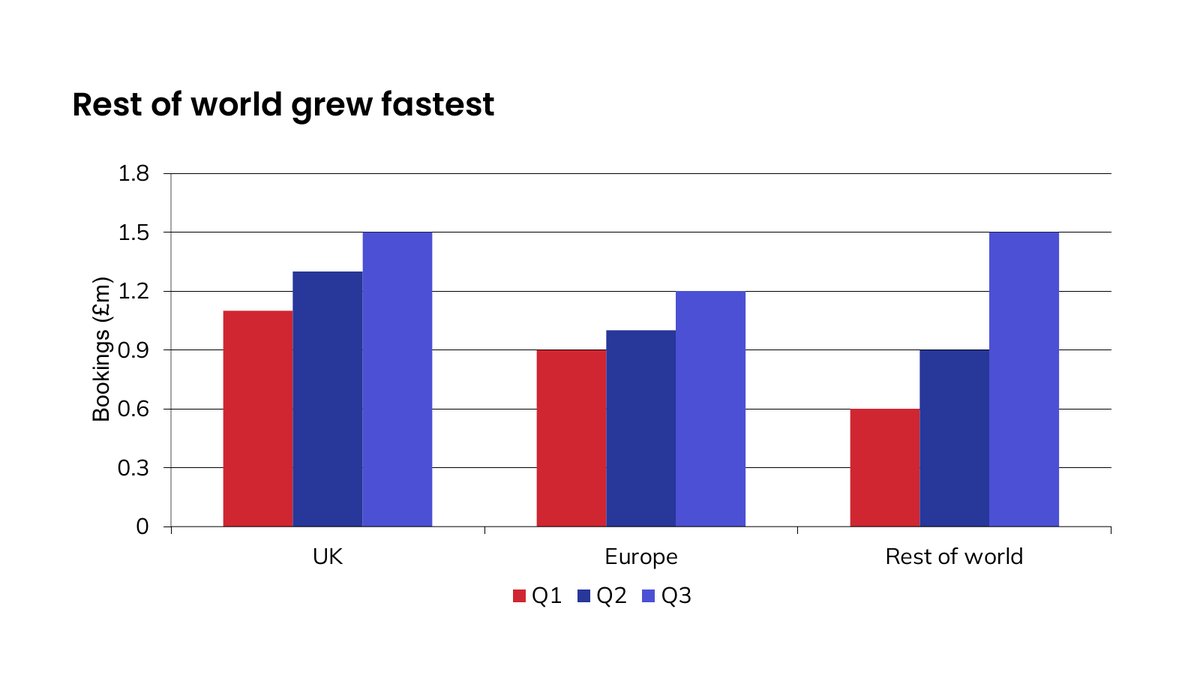
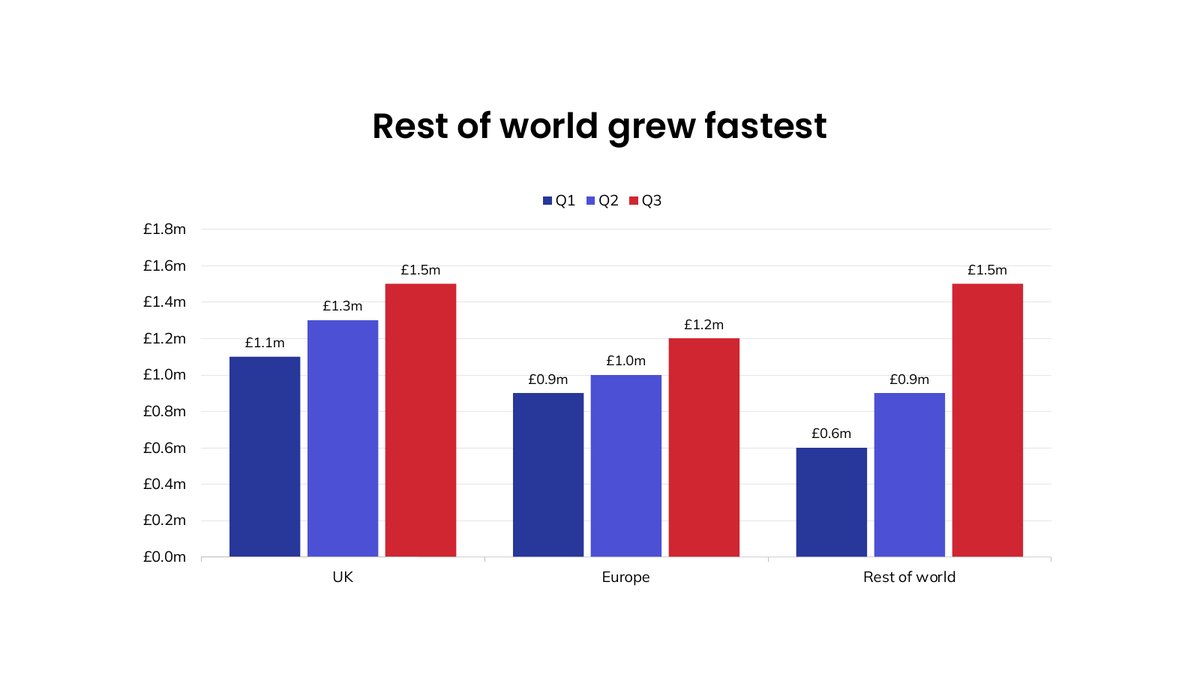
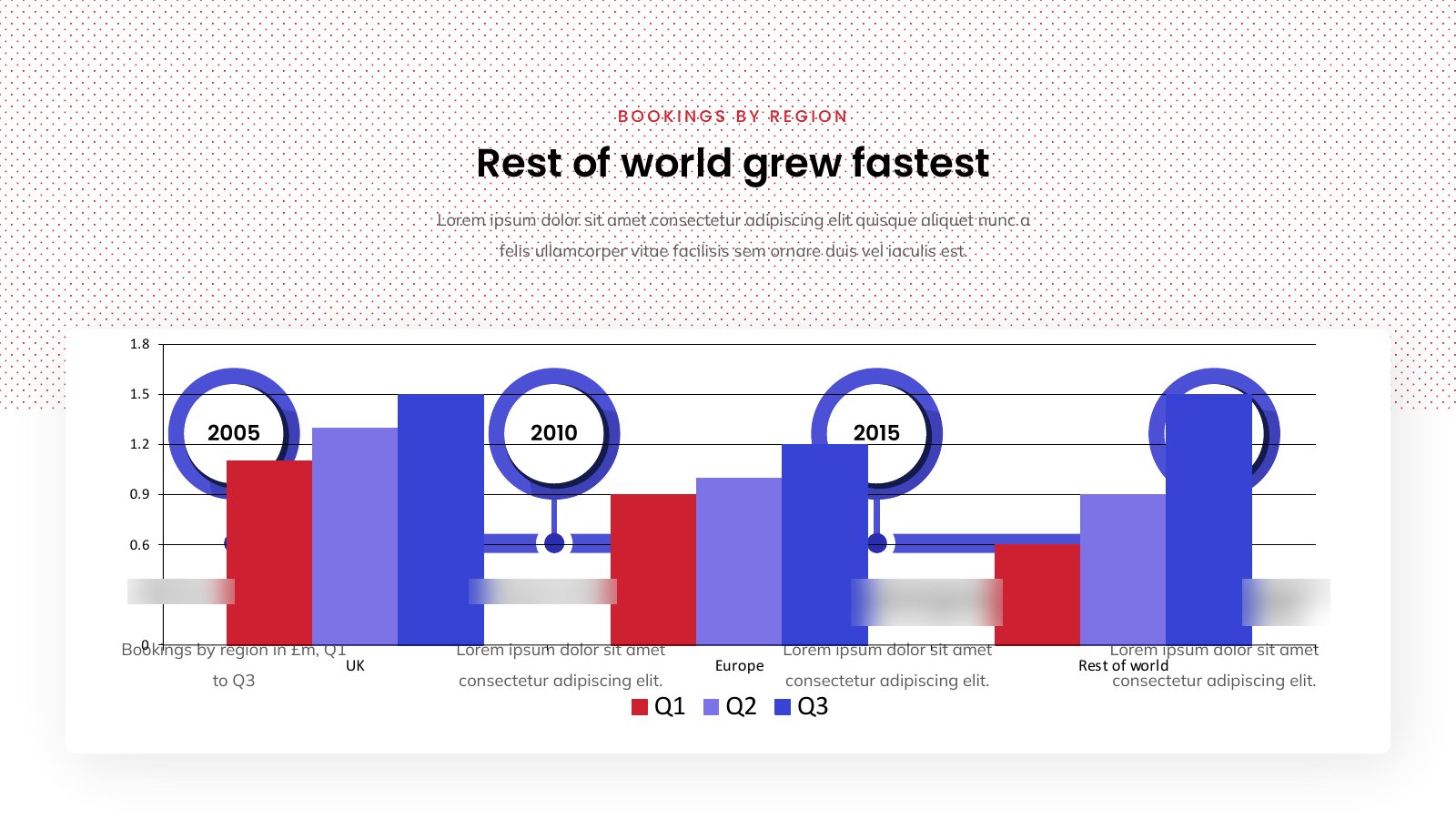
Copilot’s chart

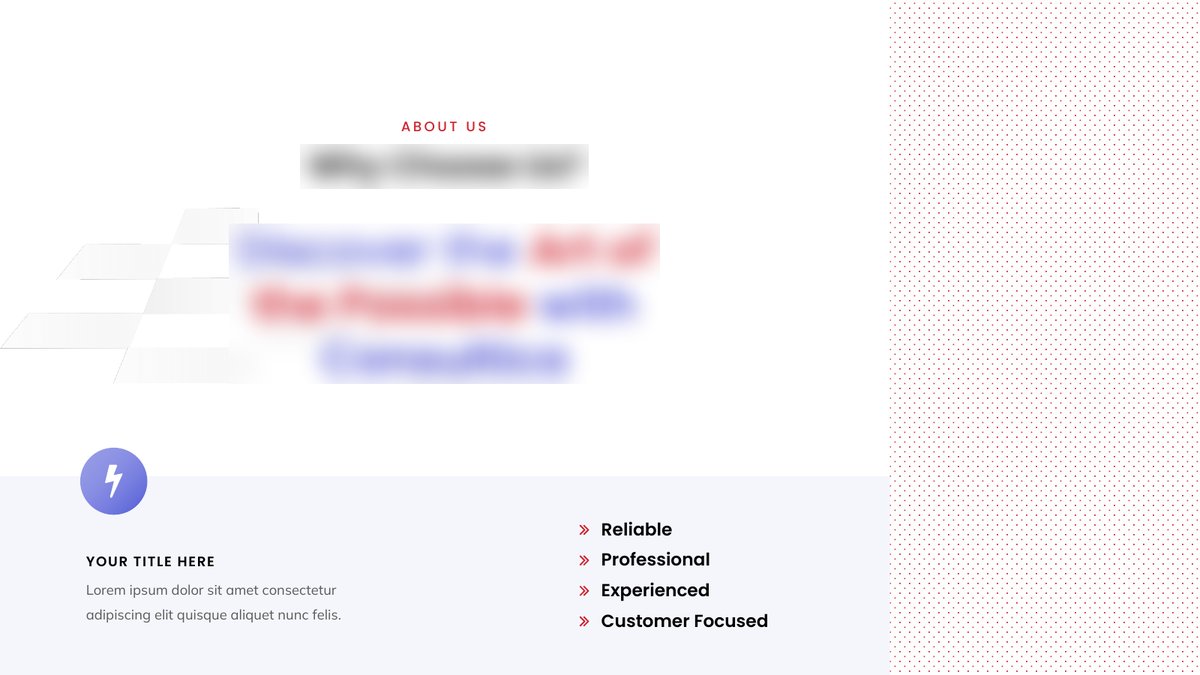
Before: The chart dropped onto a timeline slide, under its circles, dates and Lorem ipsum from the example.
Before. The chart dropped onto a timeline slide, under its circles, dates and Lorem ipsum from the example.
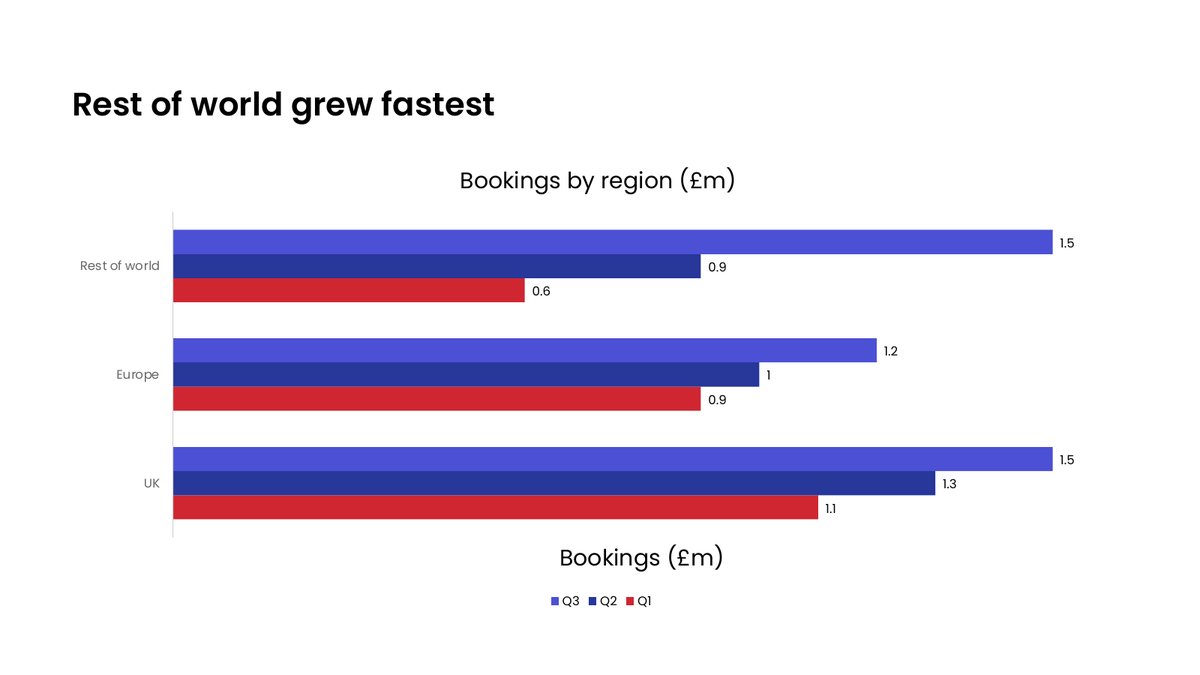
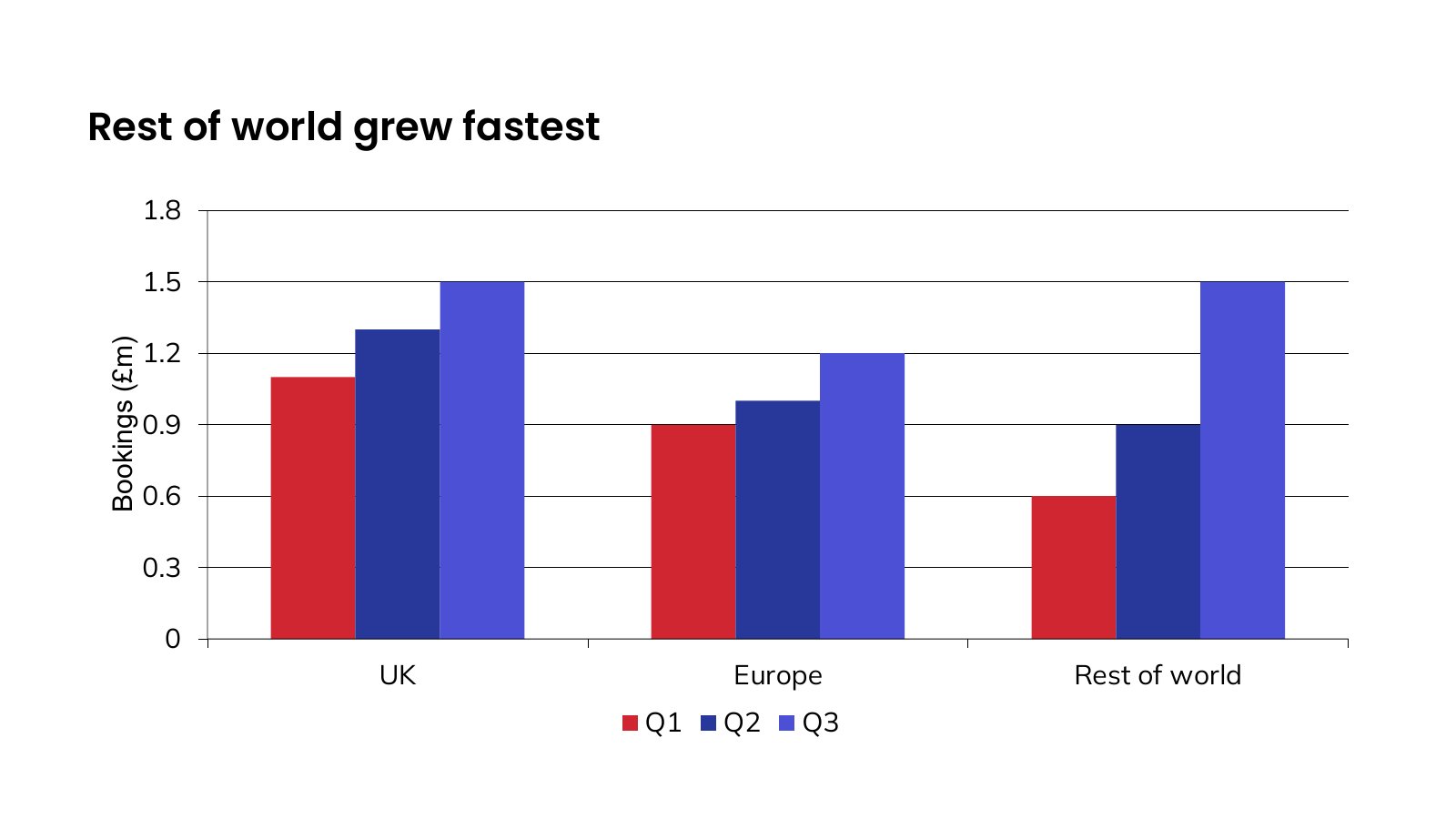
After: A bar chart on the Chart layout, in the template’s colours.
After. A bar chart on the Chart layout, in the template’s colours.

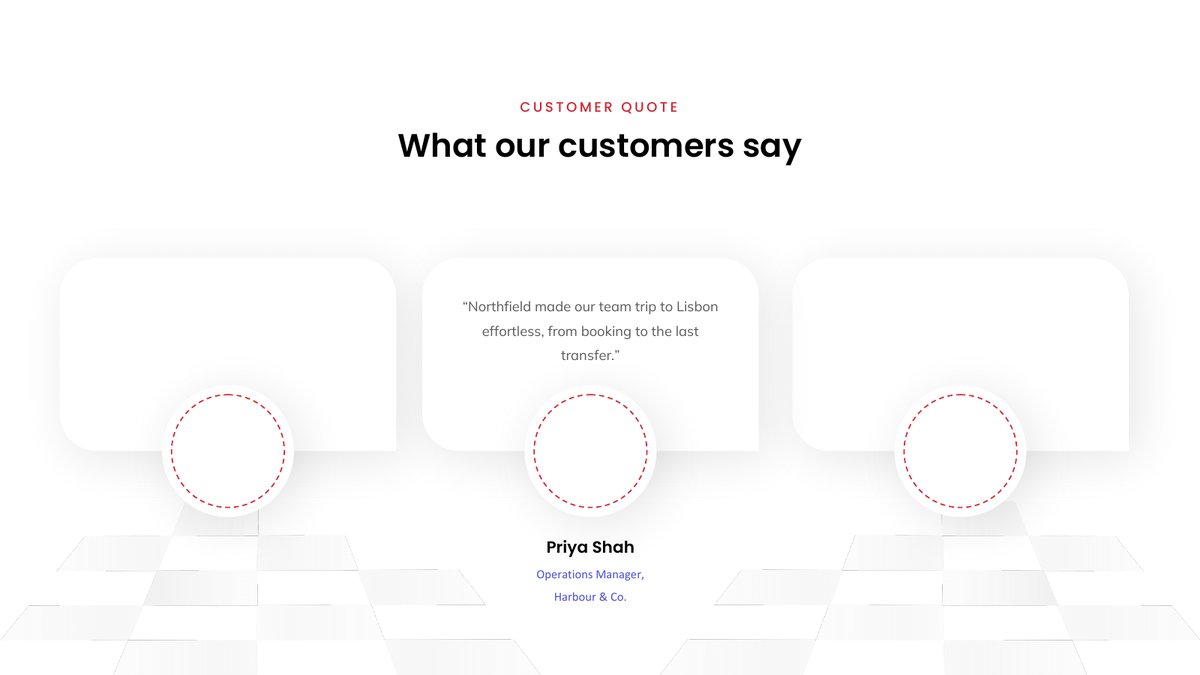
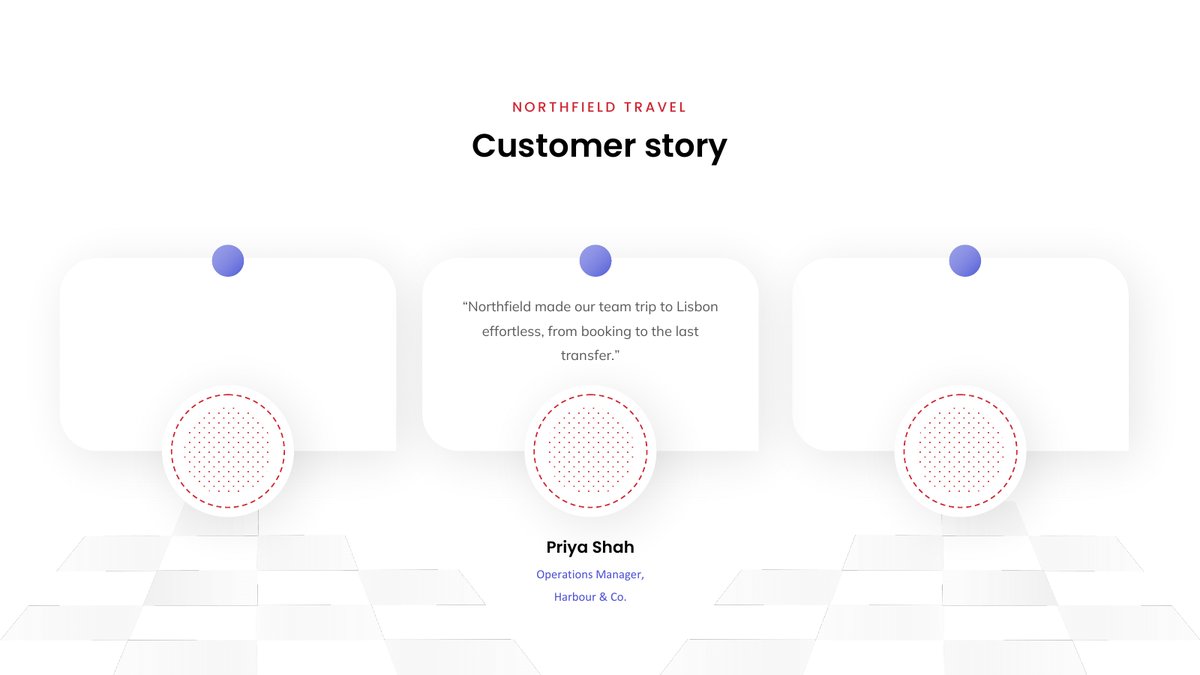
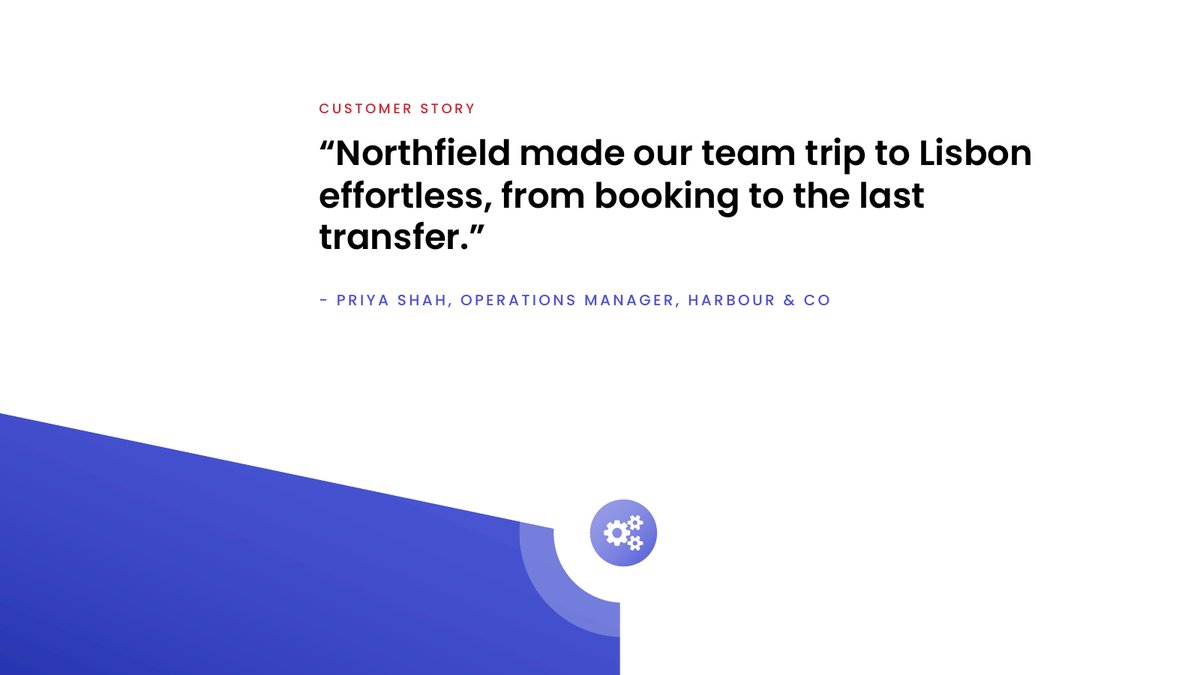
Copilot’s customer quote

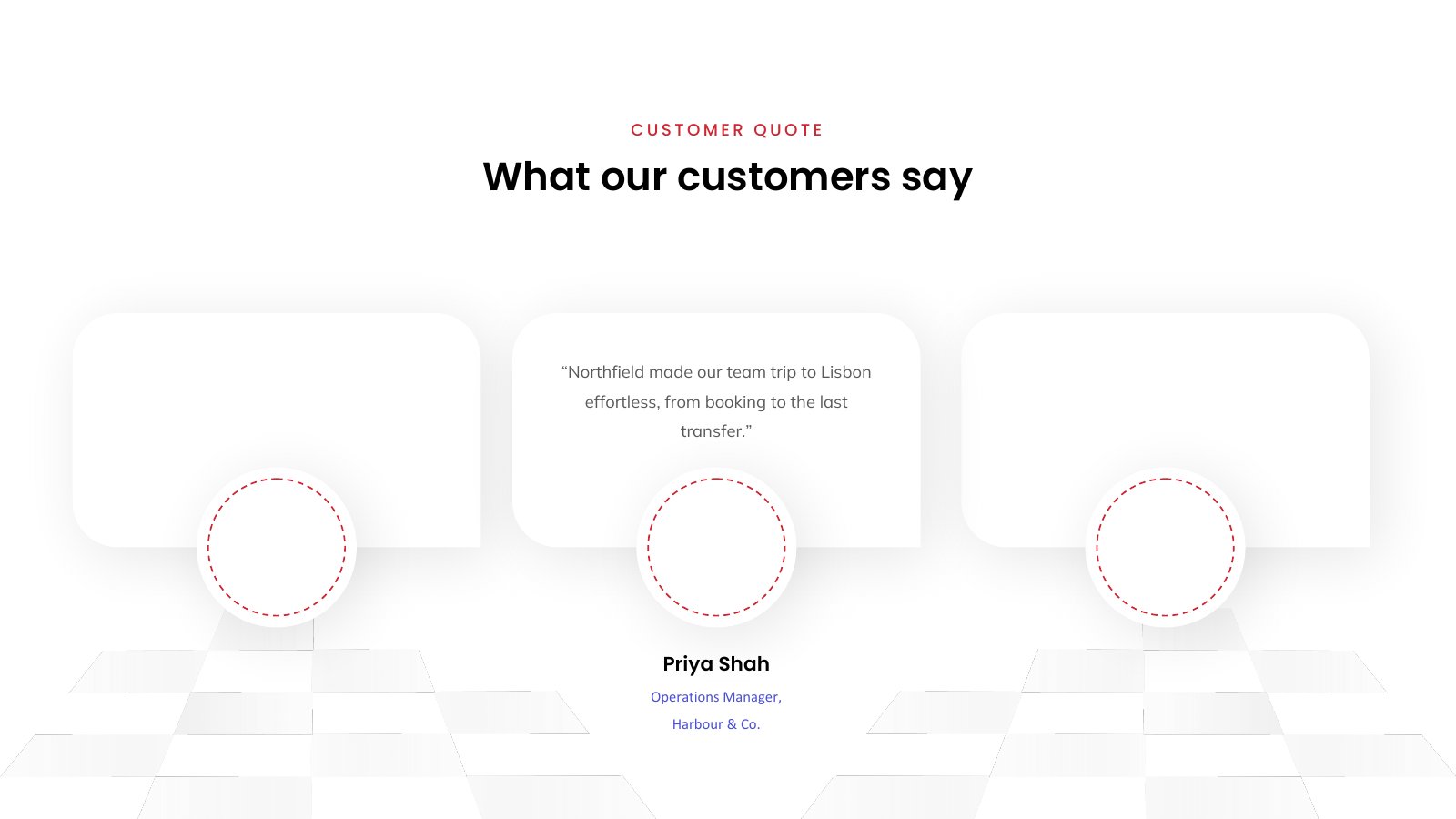
Before: The quote squeezed into one of three testimonial bubbles, under a headline it made up, “What our customers say”.
Before. The quote squeezed into one of three testimonial bubbles, under a headline it made up, “What our customers say”.
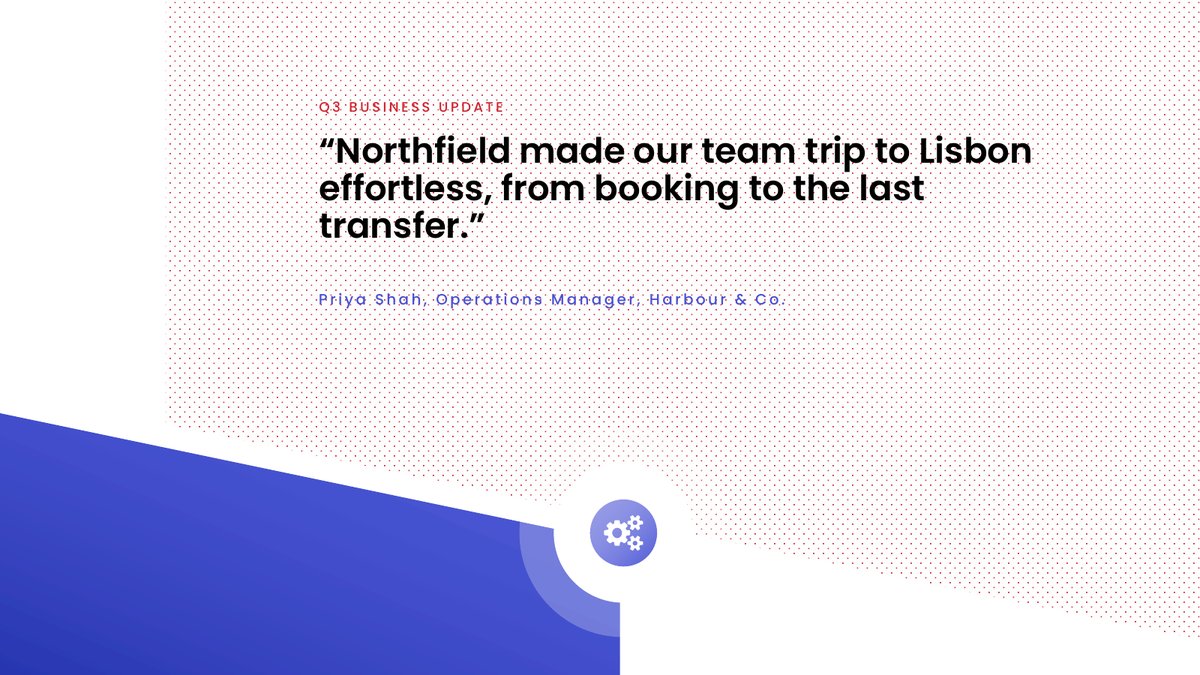
After: The quote and its author, on the Quote layout.
After. The quote and its author, on the Quote layout.

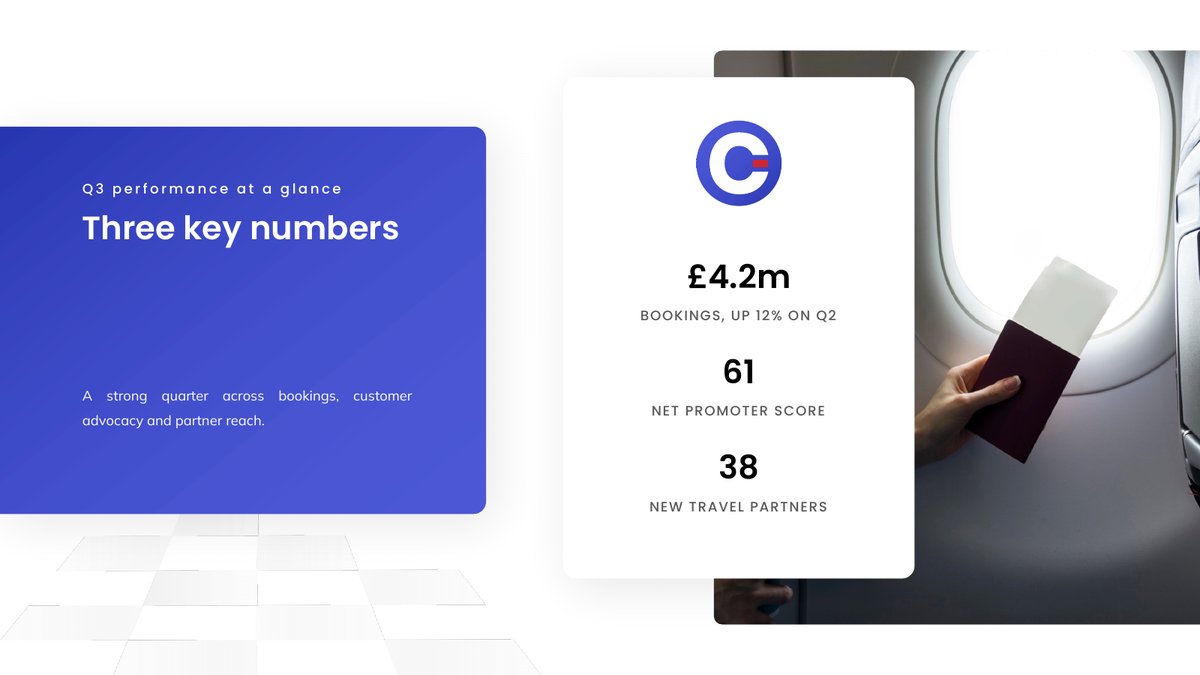
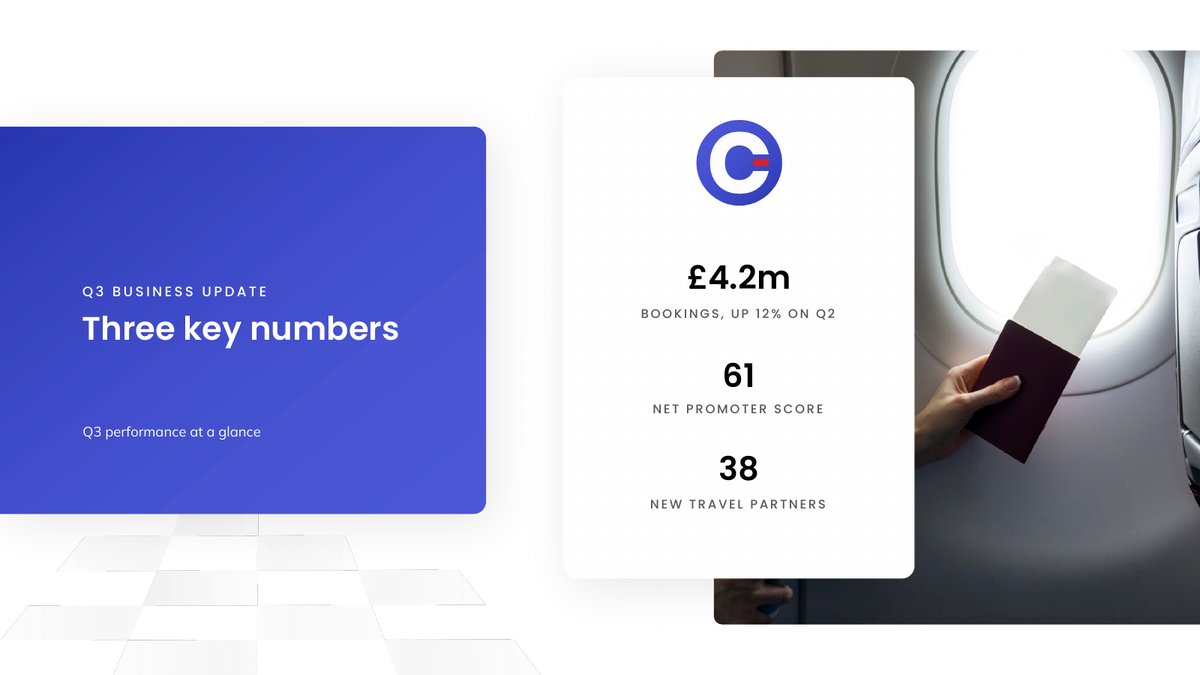
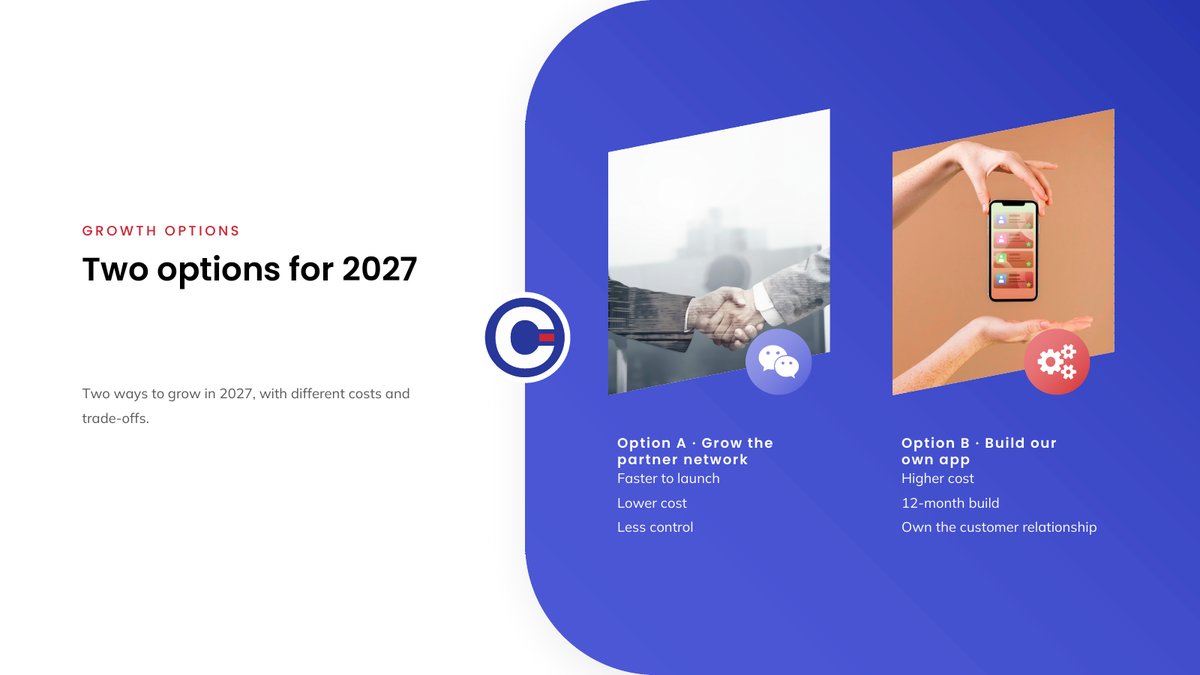
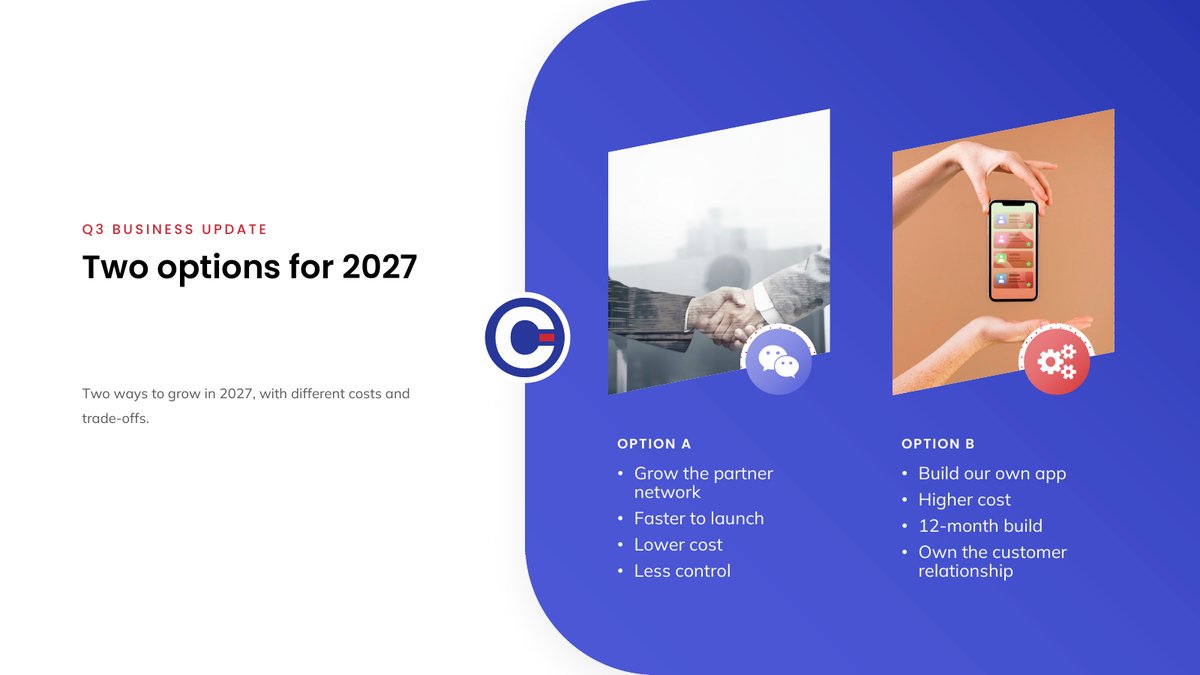
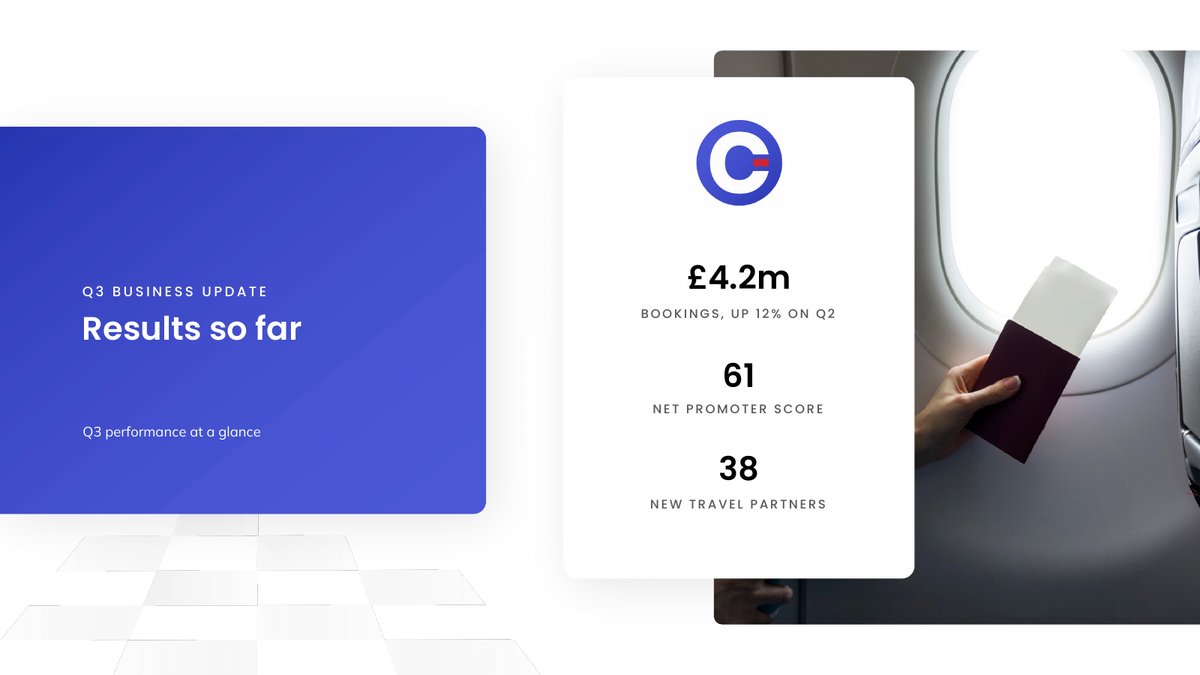
ChatGPT’s key numbers

Before: ChatGPT rewrote the template’s example slides, but its file kept the old copies too, and PowerPoint shows those: here, a sales slide from the examples, with none of the three numbers.
Before. ChatGPT rewrote the template’s example slides, but its file kept the old copies too, and PowerPoint shows those: here, a sales slide from the examples, with none of the three numbers.
After: The three numbers and the subtitle from the brief, on a key numbers layout.
After. The three numbers and the subtitle from the brief, on a key numbers layout.

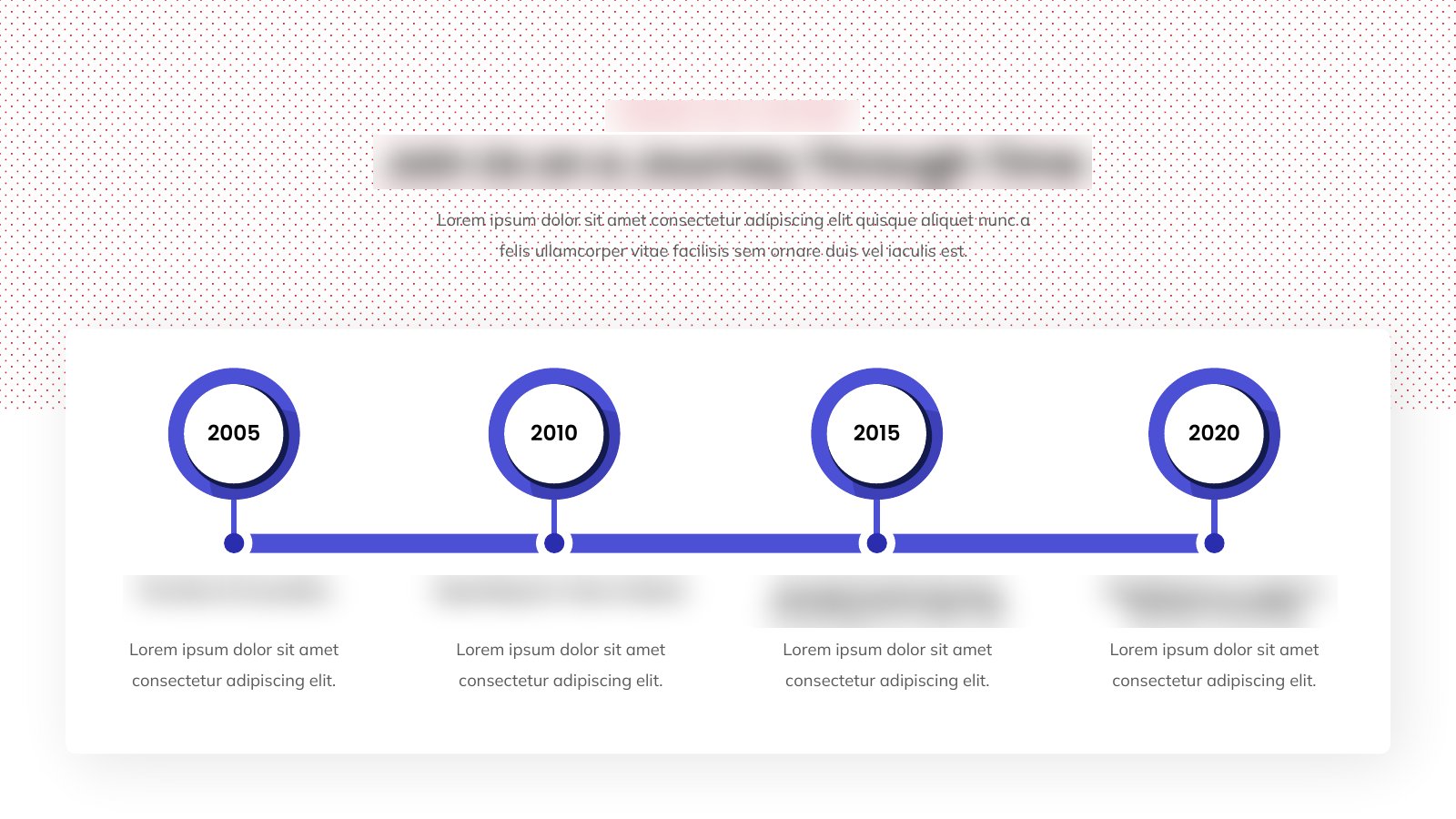
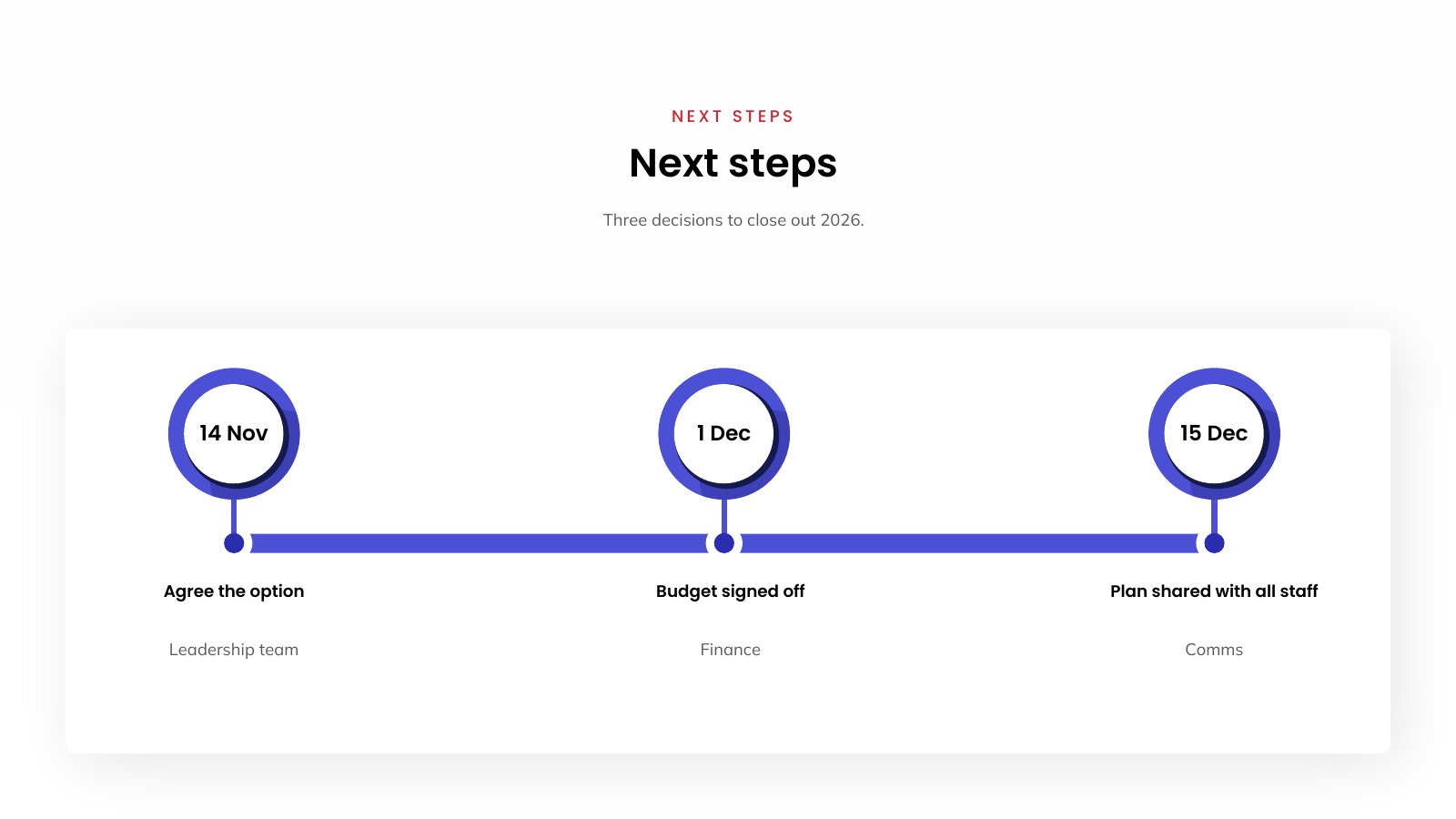
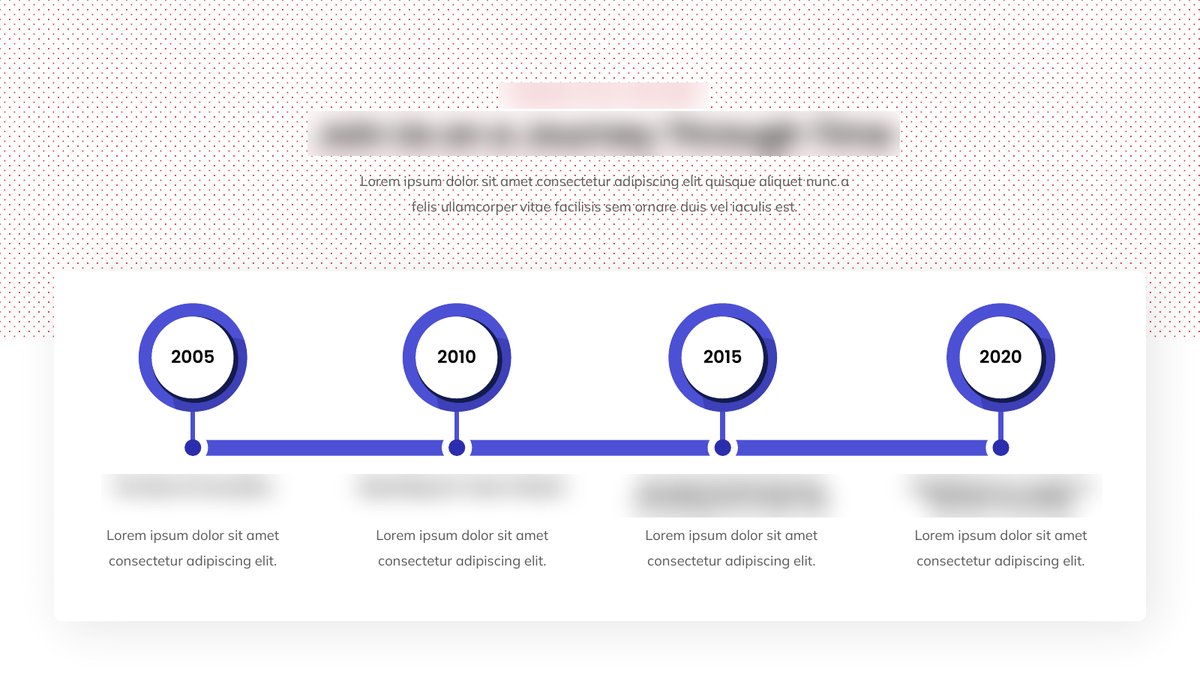
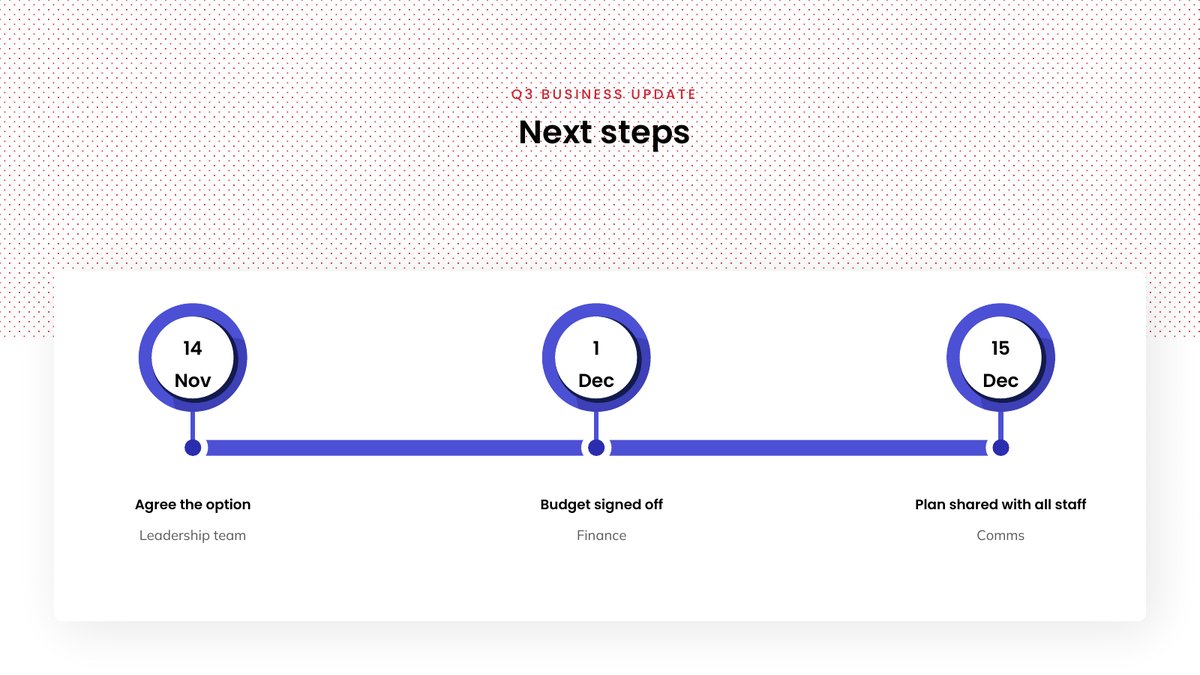
ChatGPT’s next steps

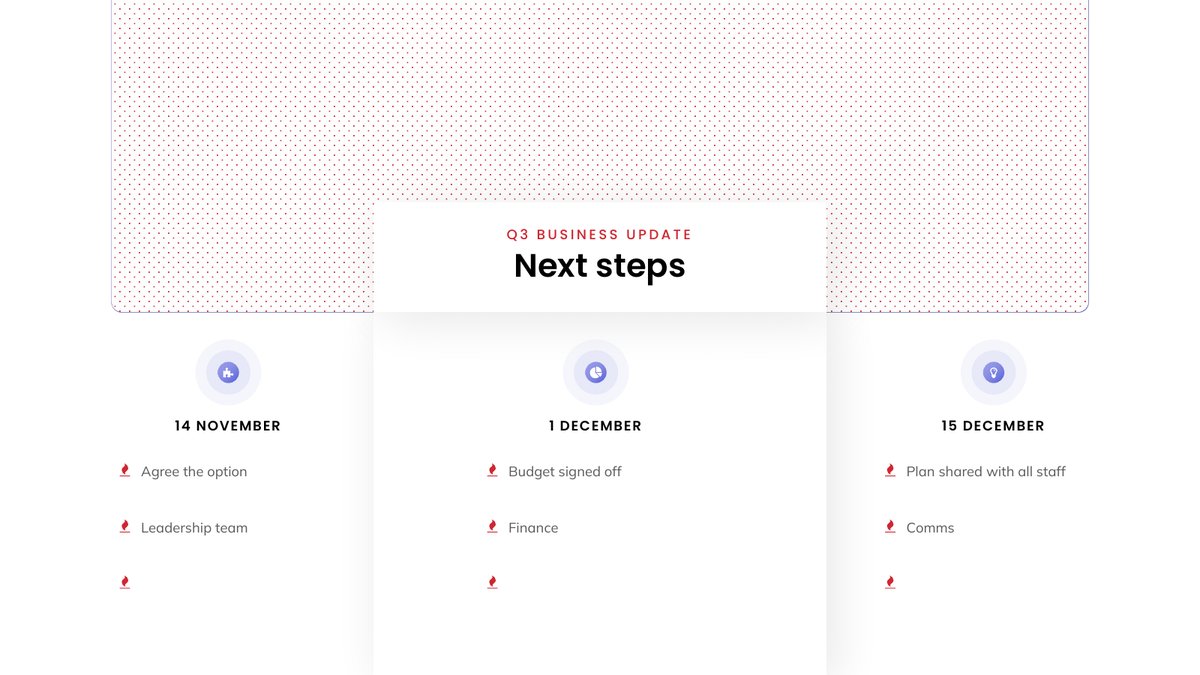
Before: The same fault: the example timeline, with its 2005 to 2020 dates and Lorem ipsum.
Before. The same fault: the example timeline, with its 2005 to 2020 dates and Lorem ipsum.
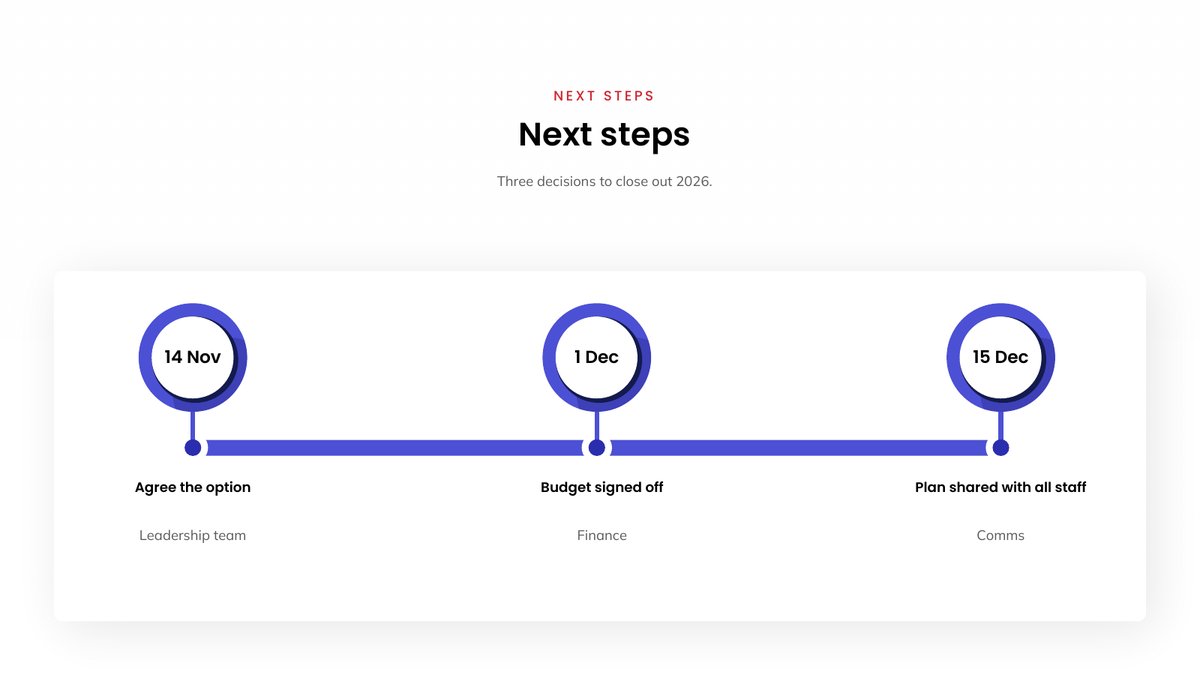
After: The three steps from the brief, each with its date and owner.
After. The three steps from the brief, each with its date and owner.

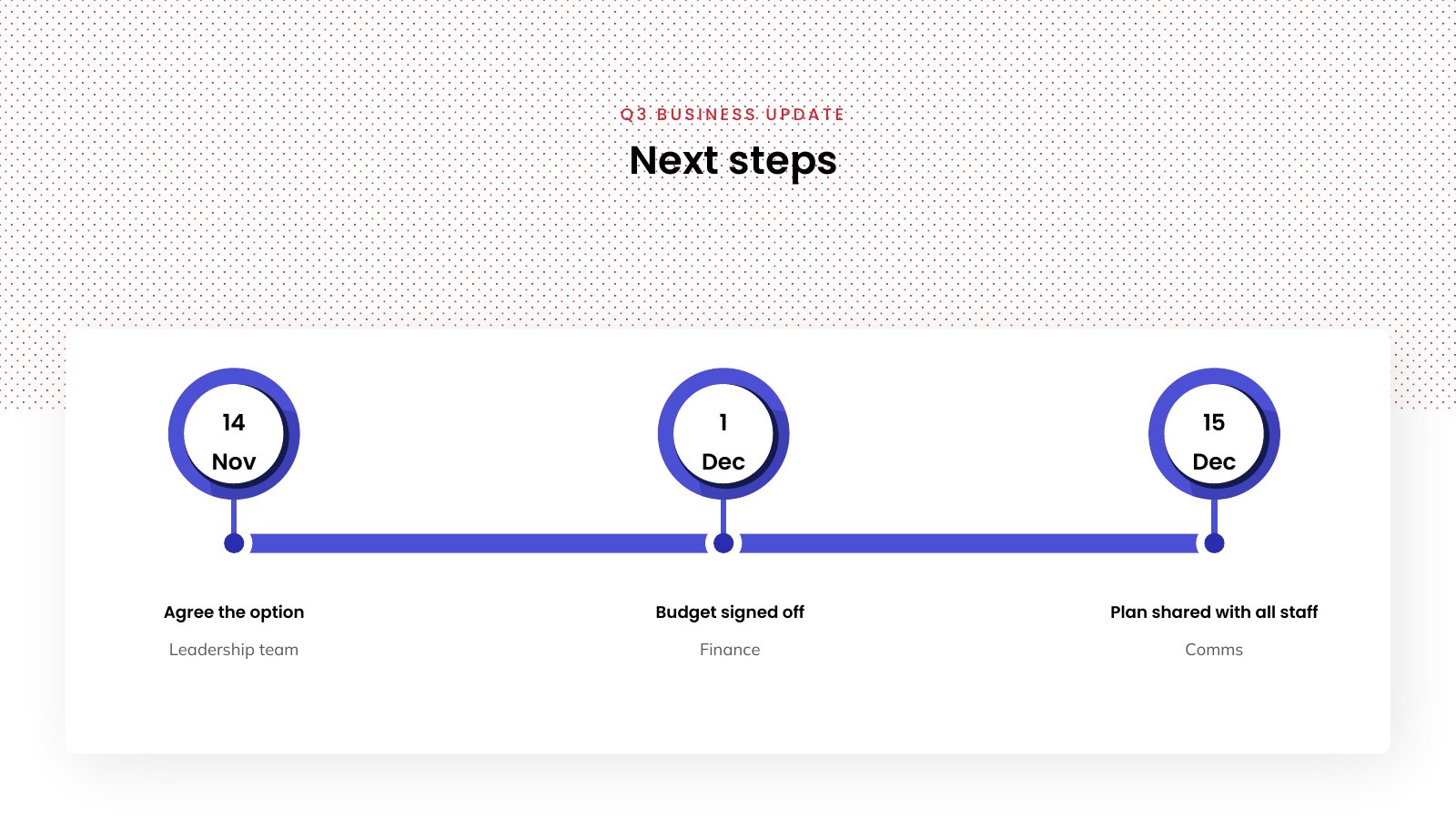
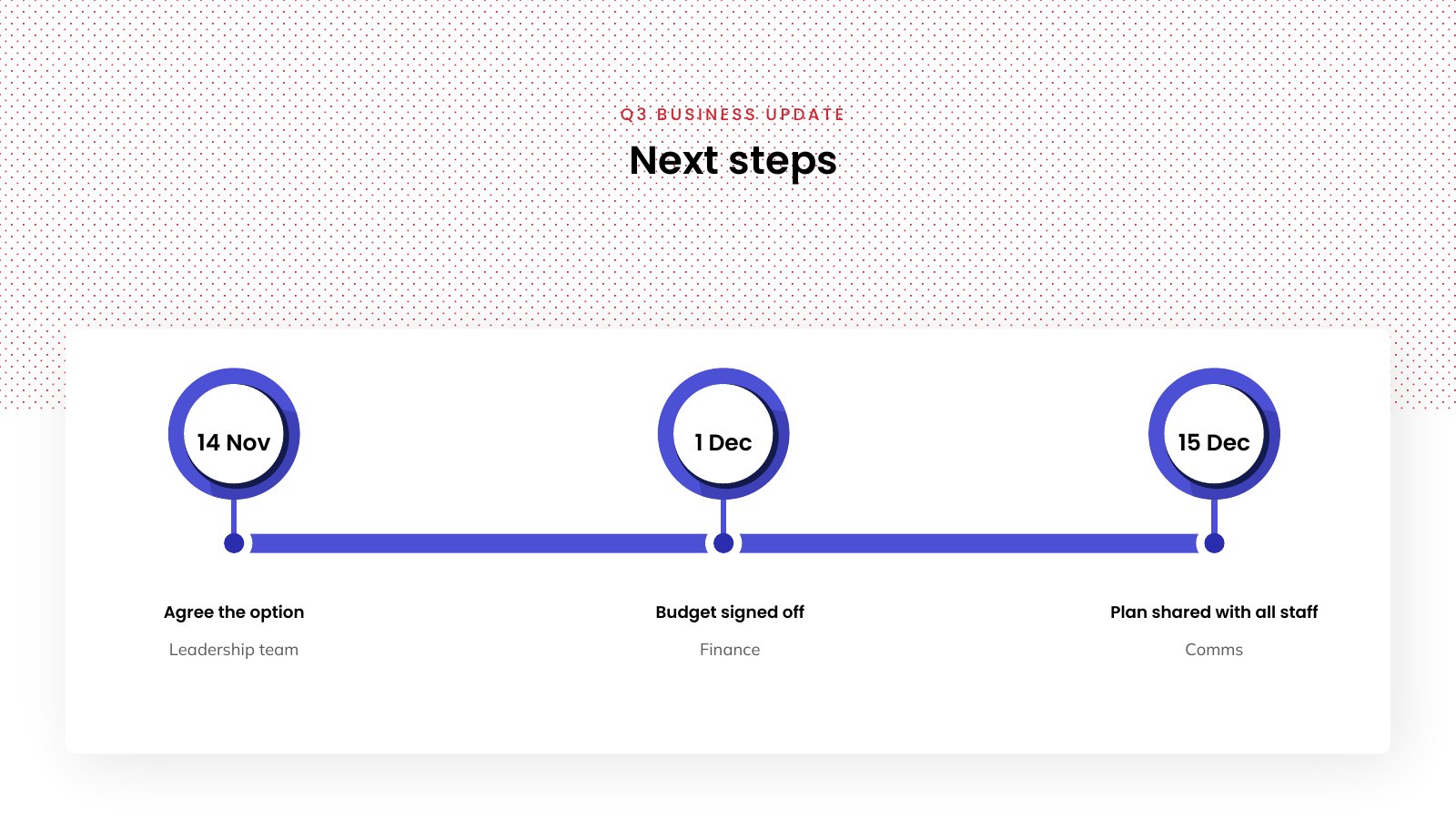
Claude’s next steps

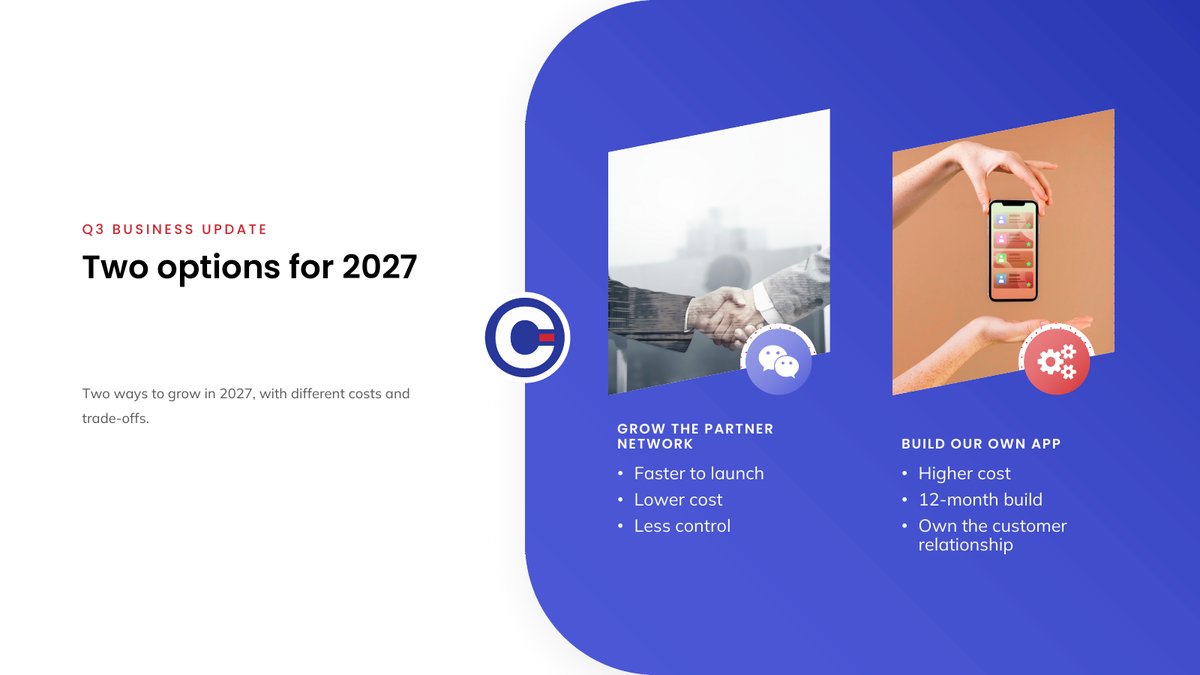
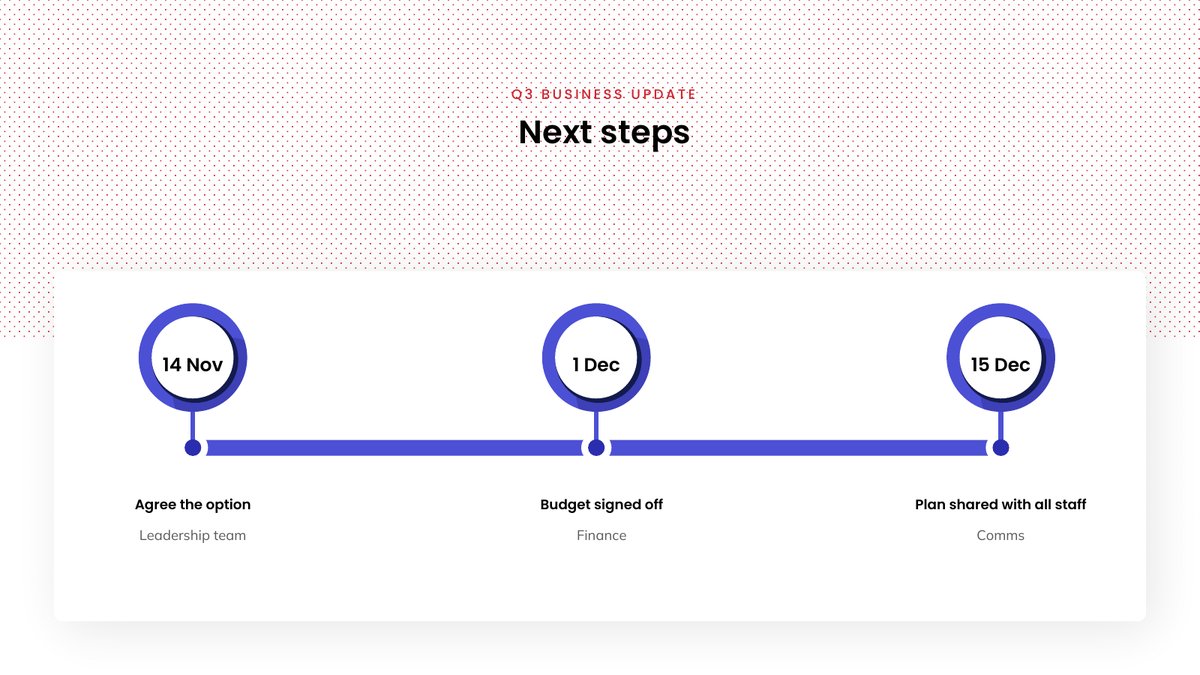
Before: Clean, but with a line it made up under the title: “Three decisions to close out 2026”.
Before. Clean, but with a line it made up under the title: “Three decisions to close out 2026”.
After: The three steps from the brief, with nothing added.
After. The three steps from the brief, with nothing added.
See all ten of Copilot’s slides, before and after

Before

After
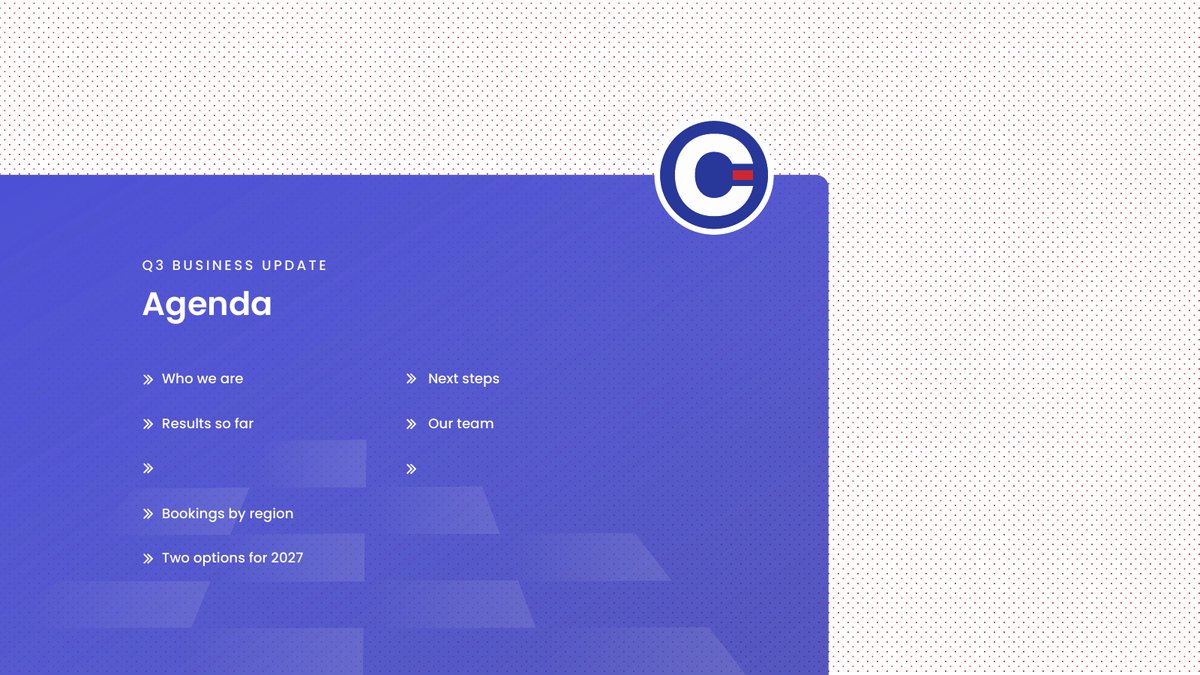
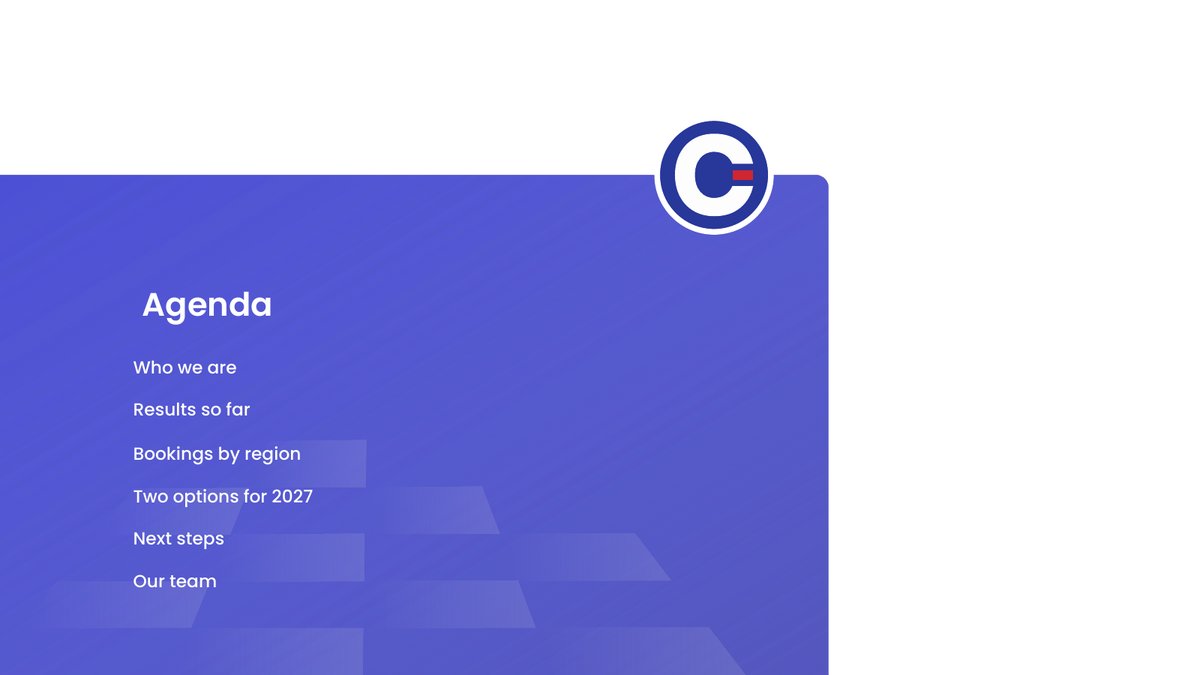
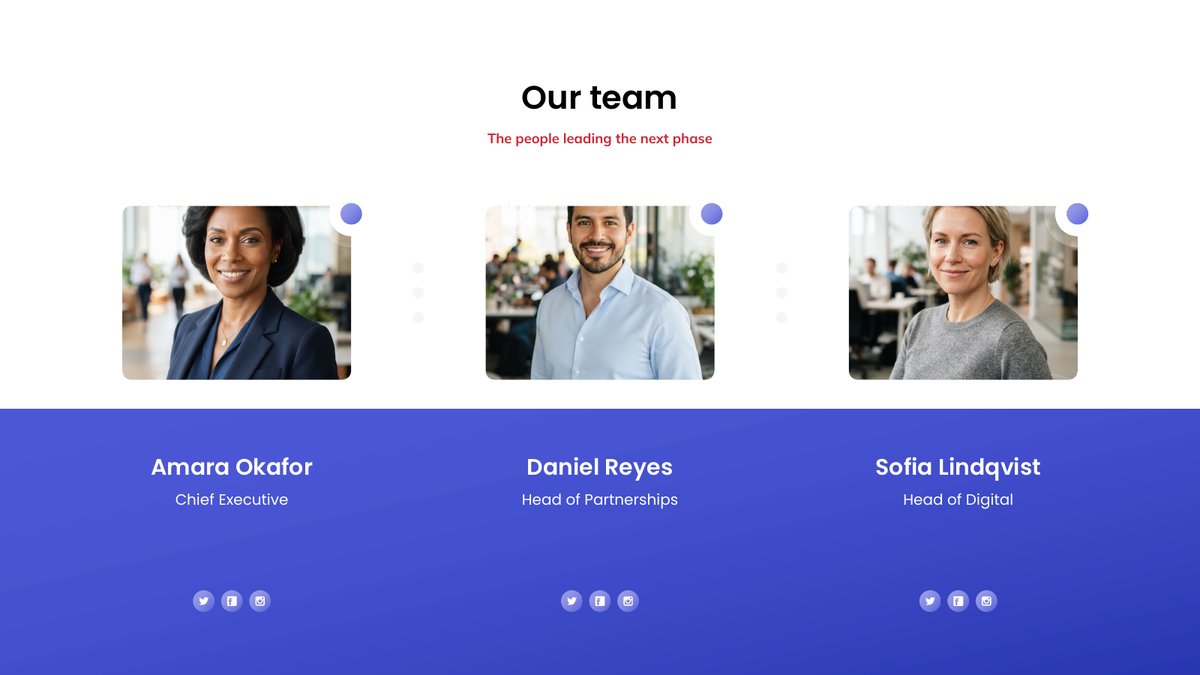
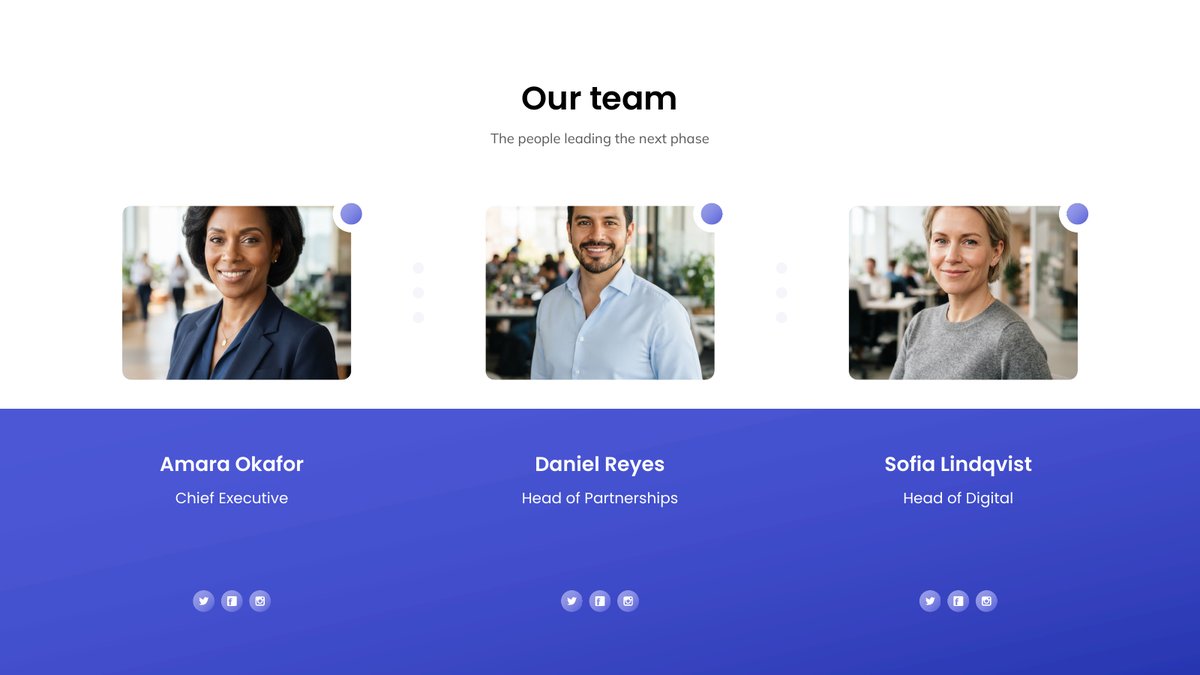
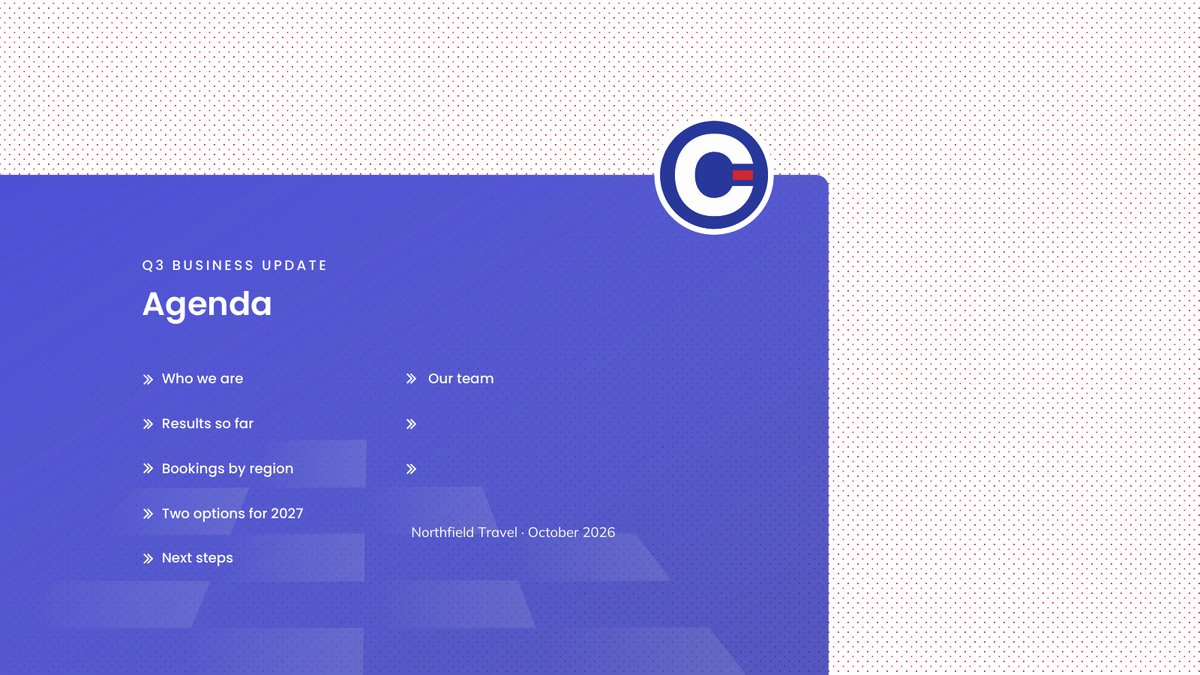
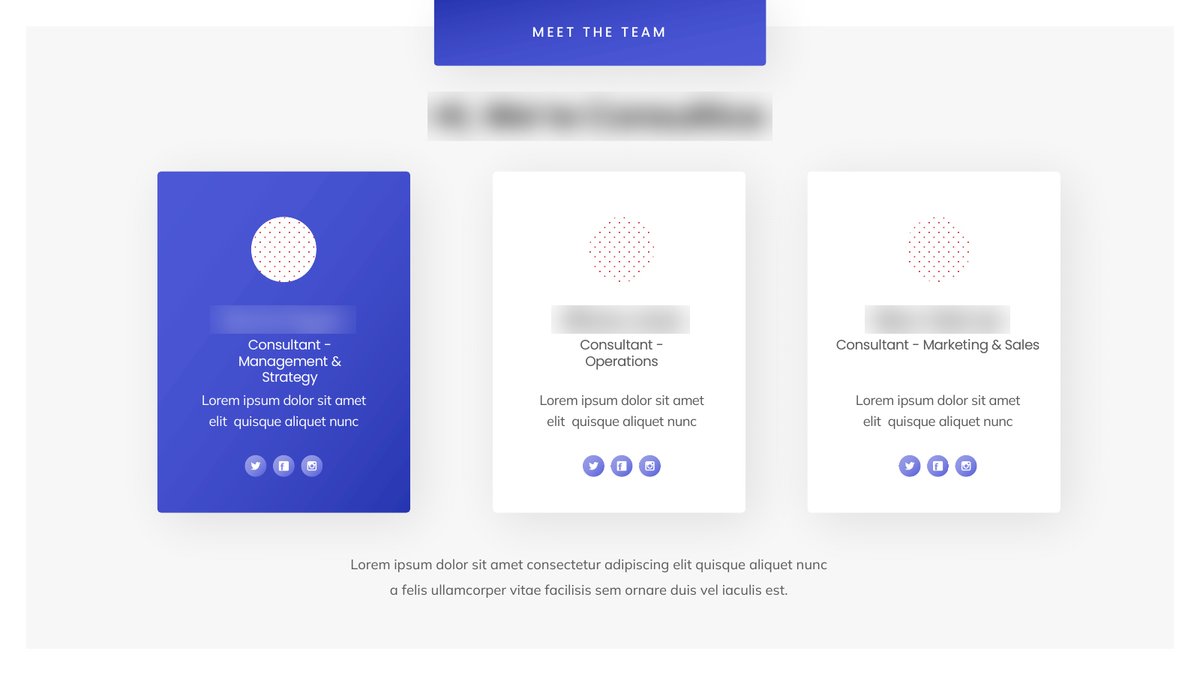
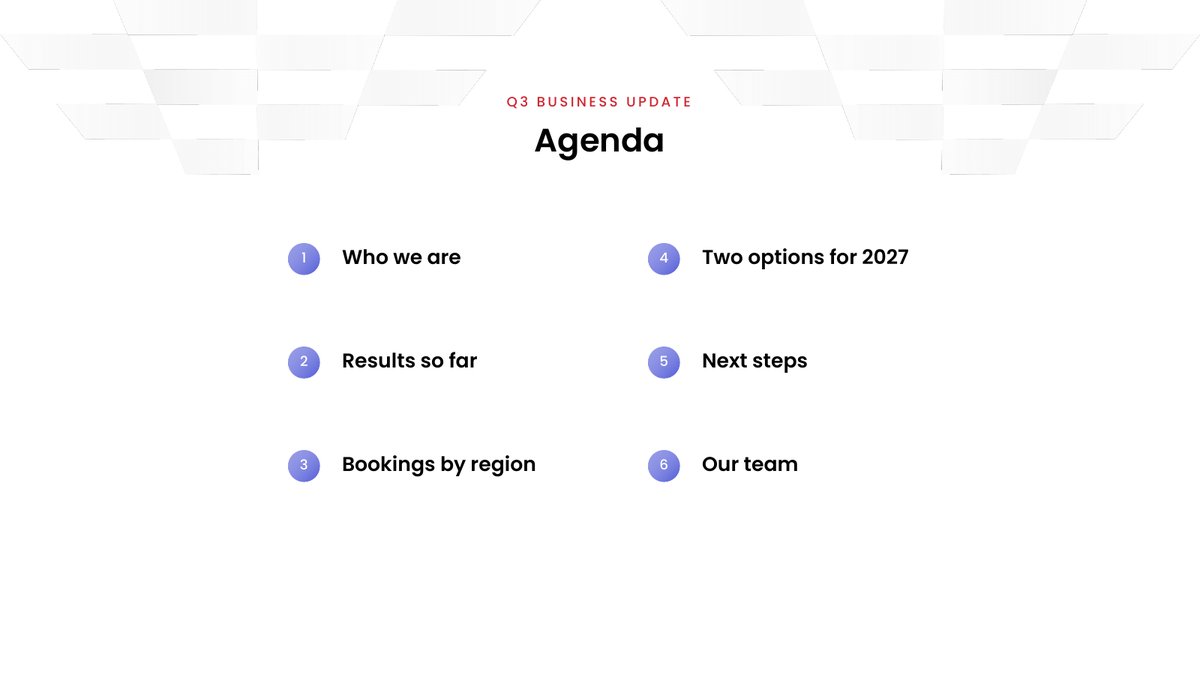
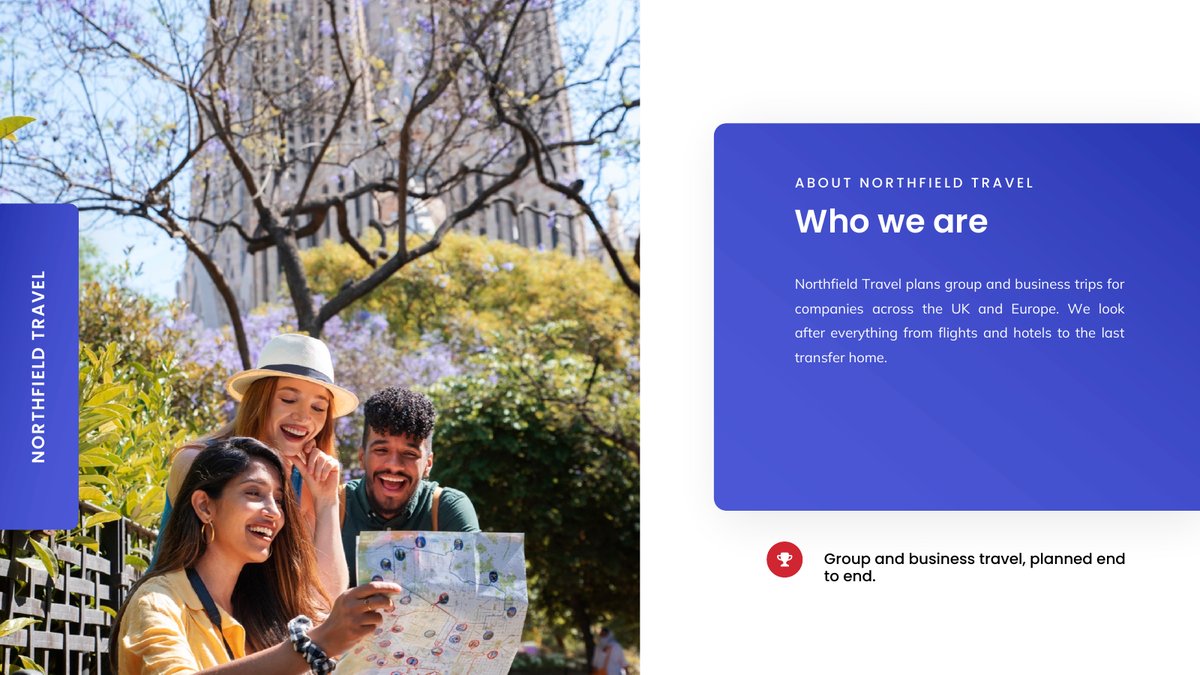
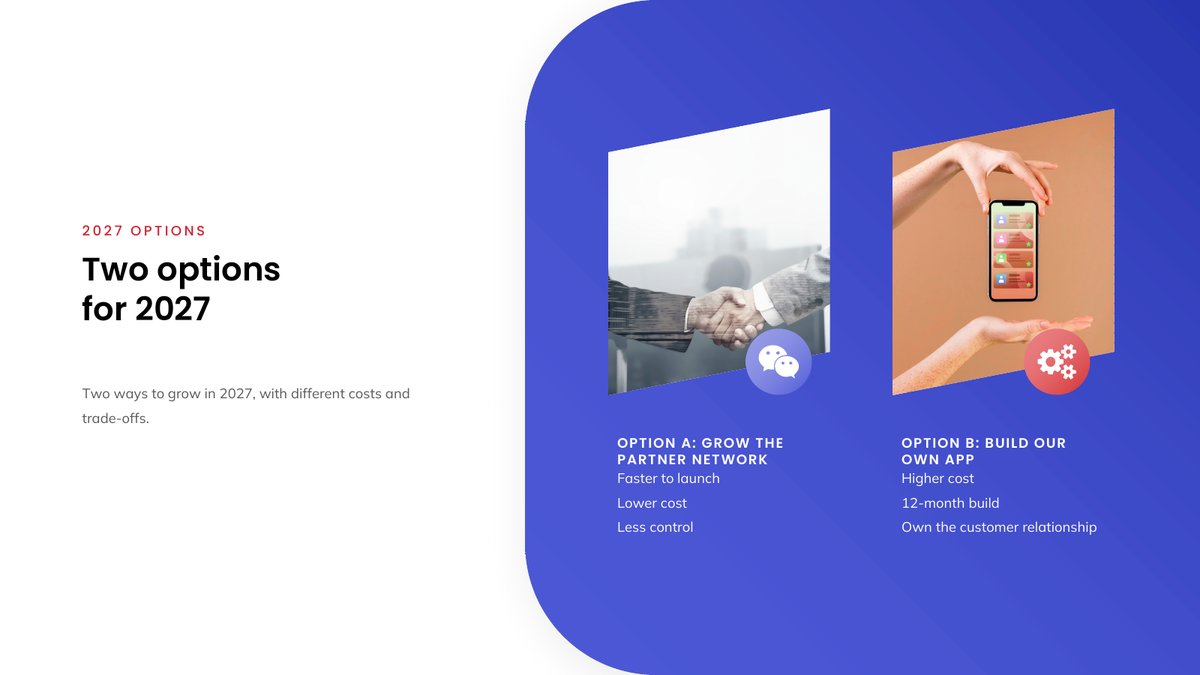
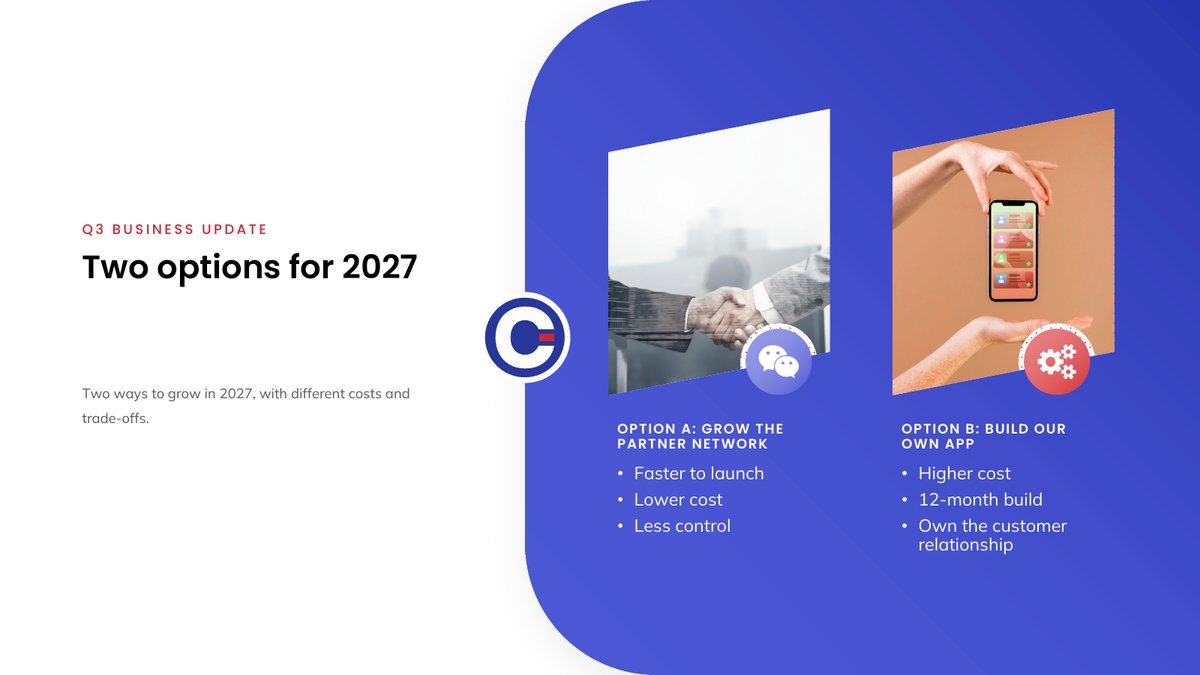
Copilot, before: slide 1, CoverCopilot, after: slide 1, CoverCopilot, before: slide 2, AgendaCopilot, after: slide 2, AgendaCopilot, before: slide 3, Who we areCopilot, after: slide 3, Who we areCopilot, before: slide 4, Key numbersCopilot, after: slide 4, Key numbersCopilot, before: slide 5, ChartCopilot, after: slide 5, ChartCopilot, before: slide 6, Two optionsCopilot, after: slide 6, Two optionsCopilot, before: slide 7, Next stepsCopilot, after: slide 7, Next stepsCopilot, before: slide 8, Our teamCopilot, after: slide 8, Our teamCopilot, before: slide 9, Customer quoteCopilot, after: slide 9, Customer quoteCopilot, before: slide 10, Thank youCopilot, after: slide 10, Thank you
See all ten of ChatGPT’s slides, before and after

Before

After

ChatGPT, before: slide 1, CoverChatGPT, after: slide 1, CoverChatGPT, before: slide 2, AgendaChatGPT, after: slide 2, AgendaChatGPT, before: slide 3, Who we areChatGPT, after: slide 3, Who we areChatGPT, before: slide 4, Key numbersChatGPT, after: slide 4, Key numbersChatGPT, before: slide 5, ChartChatGPT, after: slide 5, ChartChatGPT, before: slide 6, Two optionsChatGPT, after: slide 6, Two optionsChatGPT, before: slide 7, Next stepsChatGPT, after: slide 7, Next stepsChatGPT, before: slide 8, Our teamChatGPT, after: slide 8, Our teamChatGPT, before: slide 9, Customer quoteChatGPT, after: slide 9, Customer quoteChatGPT, before: slide 10, Thank youChatGPT, after: slide 10, Thank you
See all ten of Claude’s slides, before and after

Before

After

Claude, before: slide 1, CoverClaude, after: slide 1, CoverClaude, before: slide 2, AgendaClaude, after: slide 2, AgendaClaude, before: slide 3, Who we areClaude, after: slide 3, Who we areClaude, before: slide 4, Key numbersClaude, after: slide 4, Key numbersClaude, before: slide 5, ChartClaude, after: slide 5, ChartClaude, before: slide 6, Two optionsClaude, after: slide 6, Two optionsClaude, before: slide 7, Next stepsClaude, after: slide 7, Next stepsClaude, before: slide 8, Our teamClaude, after: slide 8, Our teamClaude, before: slide 9, Customer quoteClaude, after: slide 9, Customer quoteClaude, before: slide 10, Thank youClaude, after: slide 10, Thank you

What I changed

  • The design moved into the layouts

    32 vaguely named layouts became 18, each named for its job and how many items it takes, with text boxes in reading order where before there were none.

  • No spare boxes, no example slides

    Boxes the brief rarely needs were taken out, and the template now ships empty, with the designs in a separate examples file, so there is no sample text to reuse.

  • Lists, fonts and photos

    Real bullets in list boxes, the brand fonts set in the theme, and photo boxes kept clear of the panels and badges that sit in front of them.

  • Layouts for real content

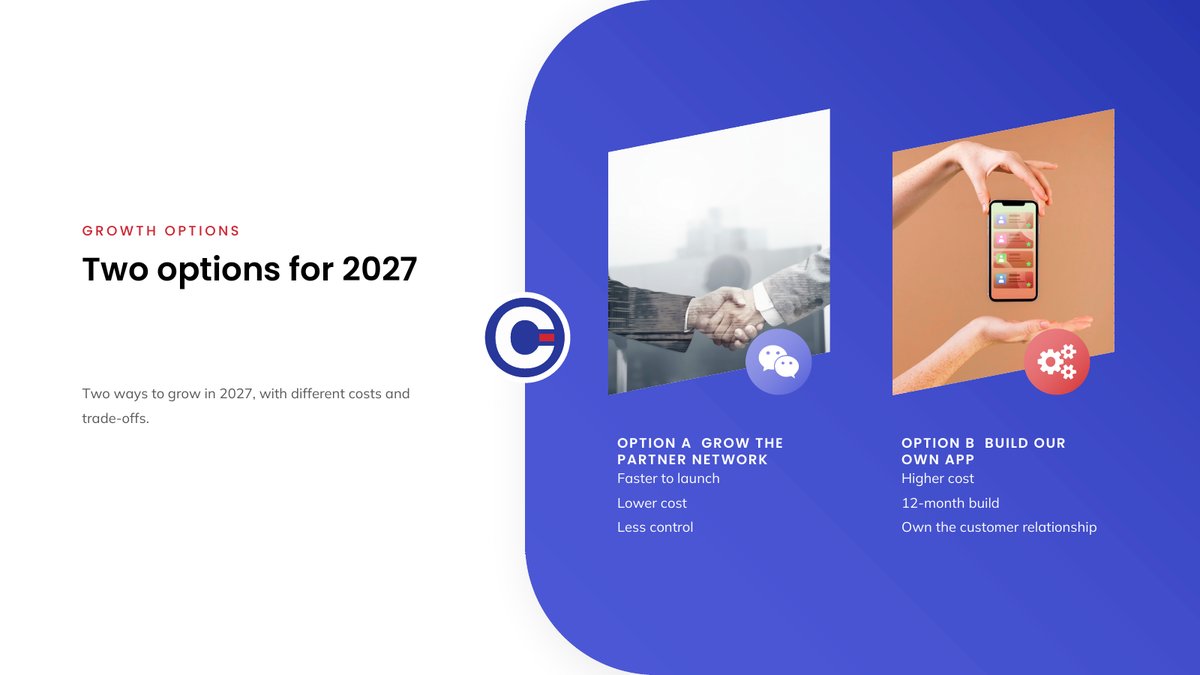
    A photo-and-card layout for introductions like “Who we are”, small section labels that carry the presentation name, never a made-up line, and every box sized for what goes in it.

With photos

Each assistant got the same photos, named for their slides. With the fixed template, all three put every one in its photo box, clear of the panels and badges around it. These are Claude’s.

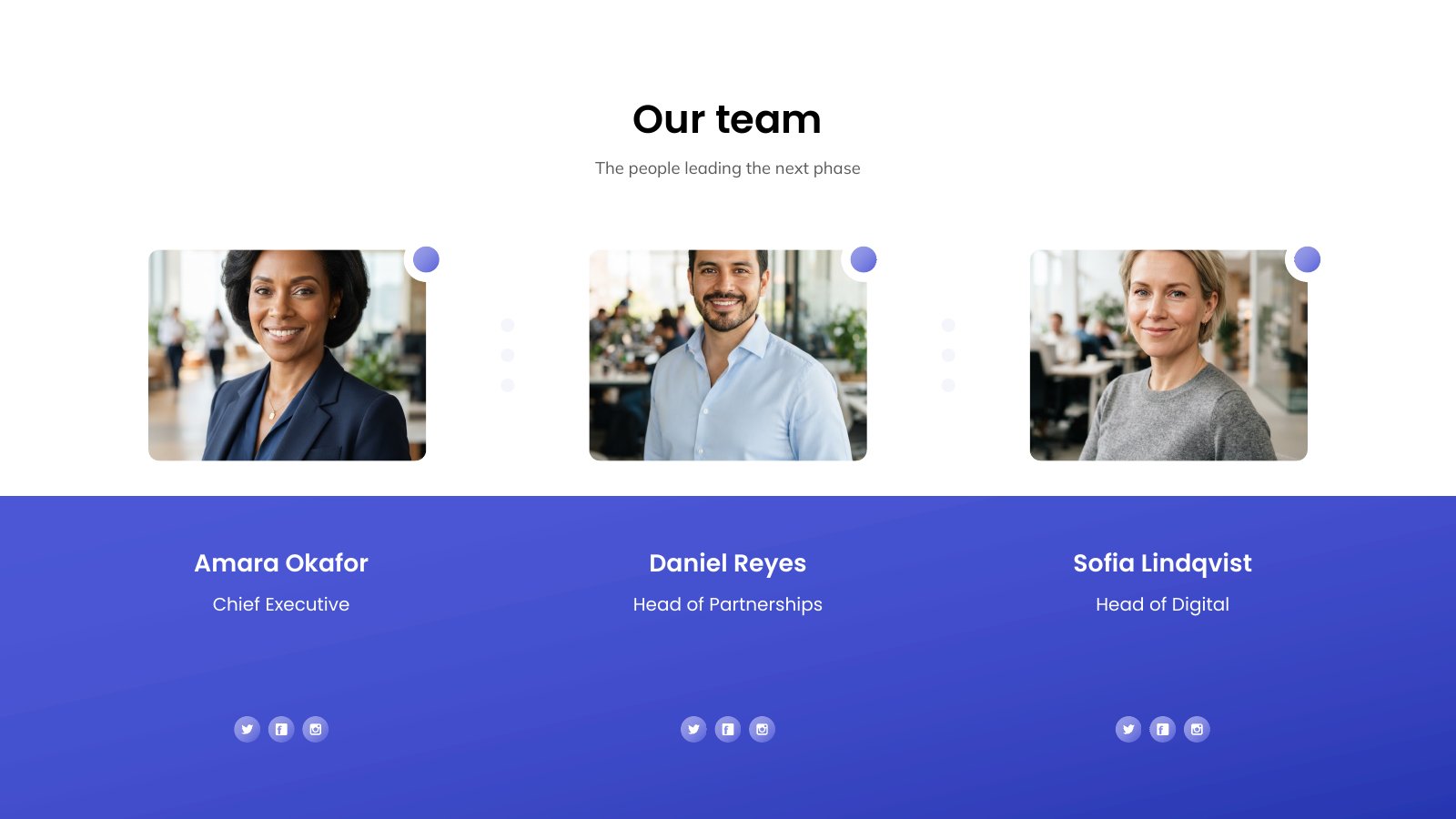
Claude’s deck with the fixed template, exactly as it came out. Photos from Magnific; the people are fictional.

What it shows about any template

  • Every box you add, the AI fills

    Before the fixes, all three assistants filled the template’s spare text spots with headlines and labels the brief never contained.

  • A layout without text boxes is invisible to AI

    The original had 32 layouts and not one text box in any of them, so each assistant rebuilt every slide its own way.

  • Ship the template empty

    Asked to work in the template, Copilot overwrote its example slides and left their sample text behind. A template with no slides avoids that.

  • Size each box for what goes in it

    A box styled for one big line will get a paragraph sooner or later. Name it for its job and size it so it still works when that happens.

  • Photos sit on top of the layout

    Anything drawn on a layout ends up behind a photo added to a slide, so photo boxes have to be kept clear of the shapes meant to sit in front.

  • Copying examples is fragile

    Before the fixes, the best results came from copying example slides that happened to fit the brief. A template that works through its layouts works for any brief.

See what the AI makes of your template.

The quick audit runs the same test on your template, with a detailed PDF report of what goes wrong and how to fix it, within one working day.

Send me a brief

A few lines is enough. You’ll get a quote back by email, and probably a few questions.

Privacy

Book a quick template audit

Upload your template and pay £99 (including VAT for UK customers). Within one working day you’ll get a detailed PDF report by email: screenshots of what Copilot, ChatGPT and Claude do with it, what’s wrong with each layout, and step-by-step fixes, most important first.

Secure card payment by Stripe.